API to Excel: A Practical Guide for Data Analysts
July 16, 2026

Importing API data to Excel is defined as the process of pulling structured data from a web service endpoint directly into an Excel workbook for analysis and reporting. Microsoft Power Query is the standard native method for this task, available in Excel 2016 and later, including Microsoft 365. Analysts who master this workflow can replace manual copy-paste routines with live, refreshable data connections. Beyond Power Query, sheet generation APIs now let you send JSON payloads to an endpoint and receive a fully formatted Excel file in return. This guide covers both approaches, plus troubleshooting tips to keep your workflows running cleanly.
What tools do you need to import API data into Excel?
The right setup prevents most problems before they start. You need Excel 2016 or later, with Microsoft 365 being the most capable version for API work. Power Query must be available and enabled, which it is by default in all modern desktop versions.
You also need access to the API itself. Most REST APIs require an API key or an OAuth token for authentication. API authentication in Excel involves passing these credentials at the request level inside Power Query. Treat your API key like a password. Never hard-code it into a shared workbook.

JSON is the most common format for REST API responses. You do not need to be a developer to work with JSON in Excel, but you should understand its basic structure: objects use curly braces, arrays use square brackets, and key-value pairs carry the actual data. Power Query handles the parsing for you once you understand what you are looking at.
What you need before you start:
- Excel 2016 or later (Microsoft 365 recommended)
- Power Query enabled (on by default in modern versions)
- A valid API endpoint URL
- API key or OAuth token from your data provider
- Stable internet connection
- Basic familiarity with JSON structure
Quick reference: authentication types
| Authentication type | How it works in Excel |
|---|---|
| API key in URL | Append key as a query parameter in the request URL |
| API key in header | Add as a custom header inside Power Query’s Advanced Editor |
| OAuth 2.0 | Use Power Query’s Web connector with OAuth credential settings |
| No authentication | Enter the URL directly with no extra configuration |
Some APIs skip authentication entirely for public data. Others require OAuth flows that are easier to handle with a short script or a dedicated API-to-Excel service. Know which type your API uses before you open Excel.
How to connect Excel to a REST API using Power Query
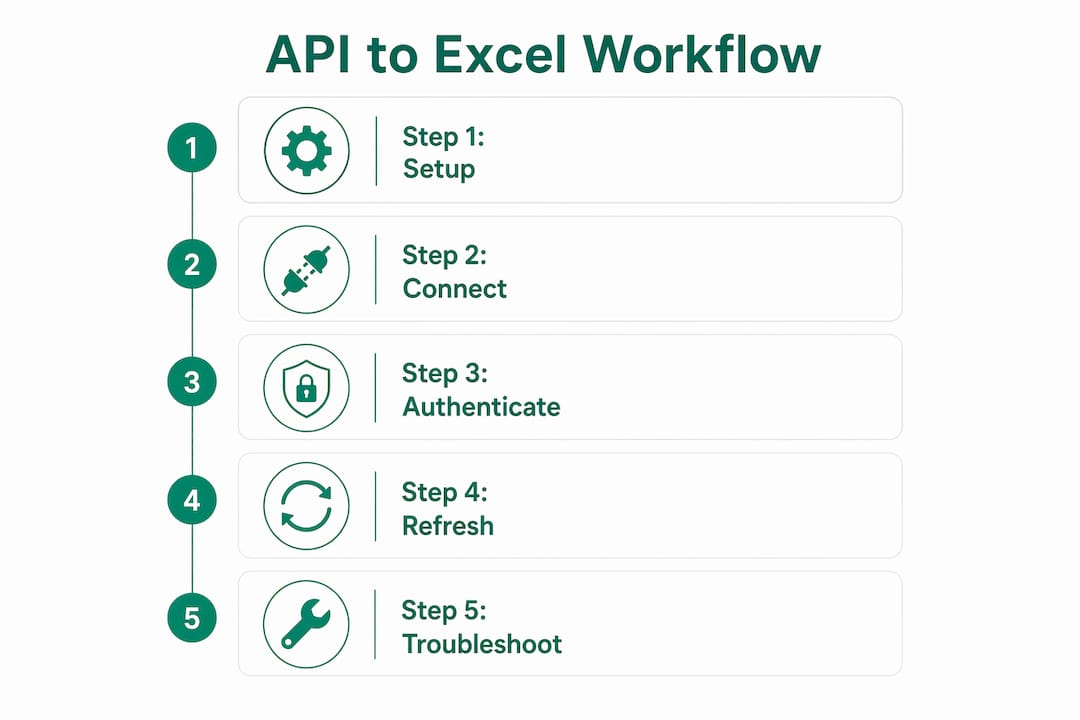
Power Query is the standard native method for connecting Excel to a REST API endpoint. The process follows a clear sequence that you can repeat for any data source.
-
Get your API URL. Build the full endpoint URL, including any query parameters. For example:
https://api.example.com/data?format=json&limit=500. Test it in a browser or a tool like Postman first to confirm it returns data. -
Open the Web connector. In Excel, go to Data > Get Data > From Other Sources > From Web. Paste your API URL into the dialog box. For simple APIs with no authentication, click OK and Power Query loads the response immediately.
-
Configure authentication. If your API requires a key, select “Advanced” in the Web connector dialog. Add the key as a URL parameter or use the Headers section to pass it as a custom header. For OAuth, select the appropriate credential type from the authentication dropdown.
-
Parse the JSON response. Power Query auto-detects JSON responses and displays the data as a structured record or list. Click “List” or “Record” to expand the top-level structure. Use the expand icon next to column headers to drill into nested arrays and objects.
-
Select and transform your fields. Remove columns you do not need. Change data types by clicking the type icon in each column header. Rename columns to match your reporting conventions. Power Query applies every transformation as a recorded step you can edit later.
-
Load data into Excel. Click “Close & Load” to send the transformed data into a new Excel table. The data lands in a structured table, ready for pivot tables, charts, or formulas.
Pro Tip: Name each Power Query connection descriptively, such as “Sales_API_Q1” rather than “Query1.” When you manage multiple API connections in one workbook, clear names save significant time during audits and updates.
Refreshing the data is straightforward. Right-click the table and select Refresh, or go to Data > Refresh All. You can also set automatic refresh intervals under Query Properties so your workbook always shows current data without manual intervention.
What are sheet generation APIs and why do analysts use them?
Sheet generation APIs represent a different approach to Excel API integration. Instead of pulling raw data and formatting it yourself, you send a structured JSON payload to an API endpoint and receive a ready-to-open, fully formatted Excel file in return. This eliminates the manual formatting step entirely.
Sheet generation APIs support detailed styling controls including font family, color, boldness, and background colors. You can define column widths, apply currency or percentage formats, and generate multiple sheets in a single request. The output is a professional report with no extra work on your end.
Key advantages for analysts:
- No manual formatting after data loads
- Consistent report aesthetics across every export
- Supports bold headers, custom column widths, and number formats
- Generates multi-sheet workbooks from one API call
- Works well for automated, scheduled report delivery
The JSON payload you send defines everything: column names, row data, and style rules. A typical request includes a “columns” array that sets headers and widths, a “rows” array with your data, and a “styles” object that controls fonts and colors. Sending structured JSON to an API endpoint and receiving a formatted file back is now a standard pattern for teams that produce recurring reports.
Pro Tip: Use sheet generation APIs for any report you produce more than once a week. The upfront time spent building the JSON payload pays back quickly when you no longer spend 20 minutes formatting the same spreadsheet repeatedly.
Analysts who need a simpler path to convert API JSON responses into Excel can also use an online converter. Jsonsupport offers a free JSON to Excel tool that takes raw JSON output from any API and produces a clean, structured Excel file without any coding.
How do you troubleshoot common API to Excel workflow issues?
Most problems with API data imports fall into a small set of categories. Knowing them in advance keeps your workflow stable.
Large API data exports often fail after 2–5 minutes due to browser timeout. The fix is to reduce the dataset size using API filters or pagination, or to run the export programmatically rather than through a browser-mediated connection.
Common issues and fixes:
- Timeout errors on large datasets. Large API exports can fail when the connection times out. Use API query parameters to filter by date range, status, or record count. Pull data in pages of 500–1,000 records rather than requesting everything at once.
- Authentication failures. Double-check that your API key has not expired and that you are passing it in the correct location. Some APIs require the key in the URL, others in the request header.
- Inconsistent data types. Power Query may read a numeric column as text if the API returns mixed values. Fix this by explicitly setting the column type in the Power Query Editor.
- Stale data in the workbook. Set automatic refresh intervals under Query Properties to keep data current. For critical dashboards, refresh every hour or at workbook open.
- JSON validation errors. Paste your API response into a JSON validator before importing. Malformed JSON causes Power Query to fail with an unhelpful error message.
Pro Tip: Use query parameters to build named API connections for different data slices. For example, create one connection for “last 30 days” and another for “year to date.” This gives you modular, reusable queries instead of one monolithic import that is hard to maintain.
Security deserves attention at every step. Store API keys in a secure location, not in the workbook itself. If you share workbooks with colleagues, remove credentials from the query and document where to find them separately. Power Query does store credentials in the Windows Credential Manager, which is safer than embedding them in plain text.
Key Takeaways
Connecting API data to Excel through Power Query and sheet generation APIs gives analysts fast, repeatable access to live data without heavy coding.
| Point | Details |
|---|---|
| Power Query is the standard method | Use Data > Get Data > From Web in Excel 2016 or later to connect to any REST API. |
| Authentication must be configured correctly | Pass API keys or OAuth tokens at the request level to avoid failed connections. |
| Sheet generation APIs eliminate formatting work | Send structured JSON to an endpoint and receive a fully styled Excel file in return. |
| Large exports need pagination | Filter or page API calls to avoid timeout errors on datasets over a few thousand rows. |
| Refresh settings keep data current | Set automatic refresh intervals in Query Properties so reports always show live data. |
Why I think most analysts underuse Excel’s API capabilities
Most analysts I talk to use Power Query for flat file imports but stop short of connecting it to live APIs. That gap is worth closing. The Power Query Web connector handles the majority of REST API patterns without any scripting, and the learning curve is shorter than most people expect.
What surprises analysts most is the sheet generation API approach. The idea that you can define a report’s structure in JSON and receive a formatted Excel file back feels like it belongs in a developer’s workflow. It does not. Any analyst comfortable with JSON can build a payload, call the endpoint, and have a polished report in minutes. The manual formatting time saved over a month is significant.
The direction I find most interesting is bidirectional Excel API integration. Businesses increasingly use tools that expose live Excel models as REST APIs, letting external applications send inputs and receive calculated outputs as JSON. This means your Excel model can become a live service without any developer involvement. That is a meaningful shift in how analysts can contribute to broader data infrastructure.
My practical advice: start with one API connection in Power Query this week. Pick a data source you already use manually, connect it, and set it to refresh automatically. Once you see how much time that saves, the motivation to go further comes naturally. API literacy is becoming a core skill for analysts, and Excel is a perfectly reasonable place to build it.
— Jonathan
Jsonsupport makes JSON to Excel conversion easy
Working with API responses means dealing with JSON constantly. Sometimes you need a quick, clean conversion without building a full Power Query workflow.
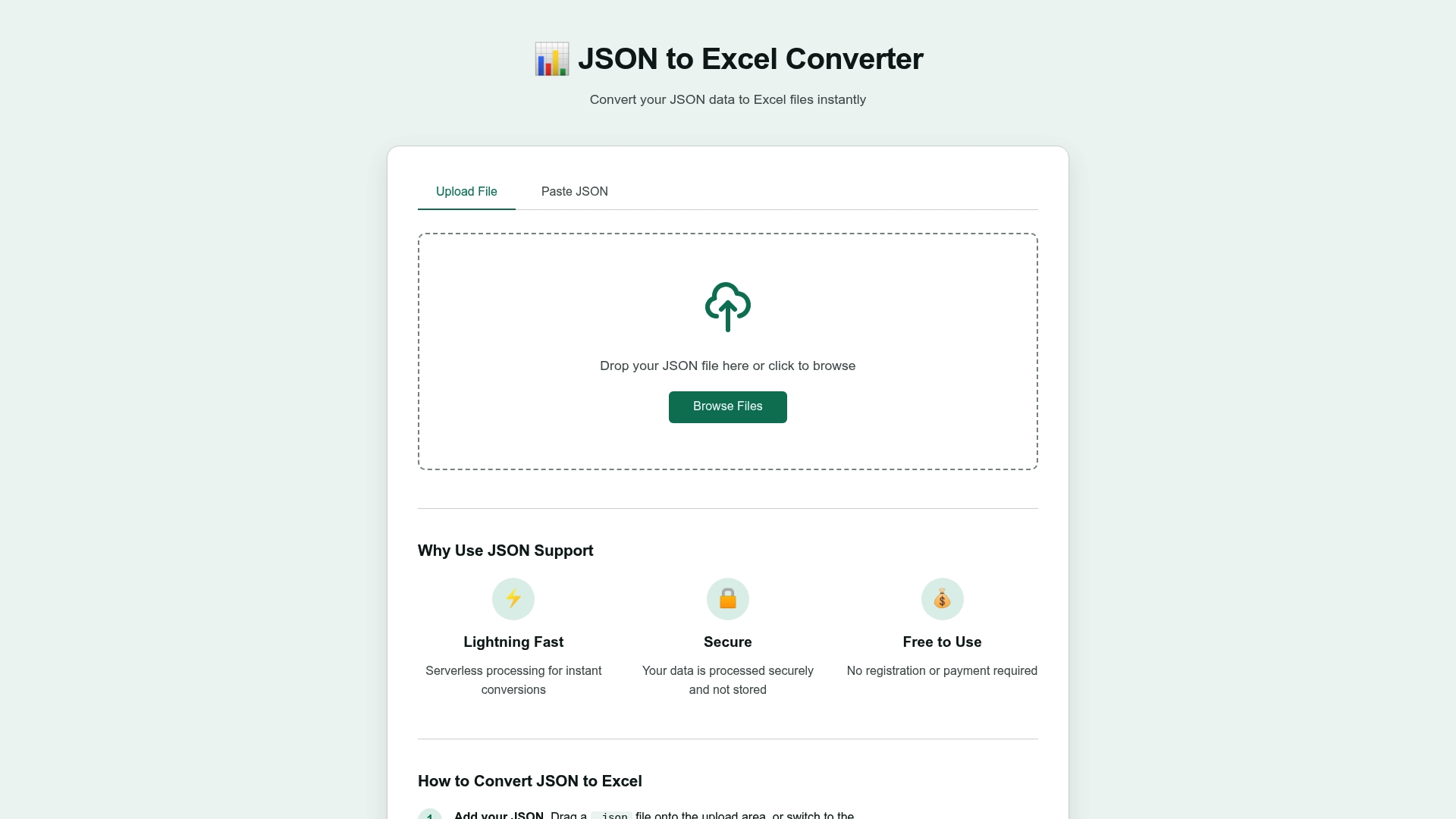
Jsonsupport is a free online tool that converts raw JSON text directly into a structured Excel file. Paste your API response, click convert, and download a clean spreadsheet in seconds. There is no software to install and no account required. The tool handles nested JSON structures and produces properly formatted Excel output every time. If you have questions about how the conversion works, the Jsonsupport FAQ covers the most common scenarios. For analysts who need fast, reliable JSON to Excel conversion without the setup overhead, Jsonsupport is the direct path.
FAQ
What is the best way to import API data into Excel?
Power Query is the best native method. Use Data > Get Data > From Other Sources > From Web, enter your API endpoint URL, and parse the JSON response directly in the Power Query Editor.
Does Excel support REST API connections natively?
Yes. Excel 2016 and later, including Microsoft 365, supports REST API connections through Power Query without any add-ins or coding required.
How do I handle API authentication in Power Query?
Pass your API key as a URL query parameter or as a custom header in the Power Query Advanced Editor. For OAuth, select the OAuth credential type in the Web connector authentication dialog.
What should I do when large API exports time out?
Use API query parameters to filter or paginate your data, pulling 500–1,000 records at a time. Programmatic API calls with filters are more stable than browser-mediated exports for large datasets.
Can I convert an API JSON response to Excel without Power Query?
Yes. Tools like Jsonsupport let you paste a JSON response and download a formatted Excel file instantly, with no setup or coding needed.