How to Convert JSON to Excel: A 2026 Guide
July 15, 2026

Converting JSON to Excel is defined as the process of transforming hierarchical, key-value structured data into a flat, tabular format that spreadsheet tools can read, sort, and analyze. Data professionals face this task constantly, whether pulling API responses, database exports, or configuration files into a reporting workflow. The two most reliable methods are Excel’s built-in Power Query and Python’s pandas library. Each suits a different skill level and use case, and knowing which to reach for saves real time.
How to convert JSON to Excel: tools and prerequisites
The right tool depends on your data’s complexity and how often you need to repeat the conversion. Three main approaches cover most situations.
Excel Power Query is the no-code option. Excel 2016 or later supports JSON import natively through Power Query. No plugins or installations are required beyond a standard Microsoft 365 or Office 2019 license.
Python with pandas and openpyxl is the scripting option. You need Python 3 installed, then two libraries:
pandasfor reading and transforming JSON dataopenpyxlfor writing.xlsxfiles
Install both with one command: pip install pandas openpyxl
Online JSON to Excel converter tools are the fastest option for one-time tasks with small files. No setup is required. You upload a file, download the result.
Before choosing a method, check your JSON structure. Flat JSON converts cleanly with any approach. Deeply nested JSON requires extra steps in every method, so knowing your data shape upfront prevents wasted effort.

| Method | Best for | Skill level |
|---|---|---|
| Excel Power Query | Regular imports, no-code users | Beginner |
| Python pandas | Automation, complex schemas | Intermediate |
| Online converter | Quick one-time tasks | Any |
Pro Tip: Open your JSON file in a text editor or a JSON validator before importing. Spotting syntax errors early prevents failed imports and confusing error messages later.
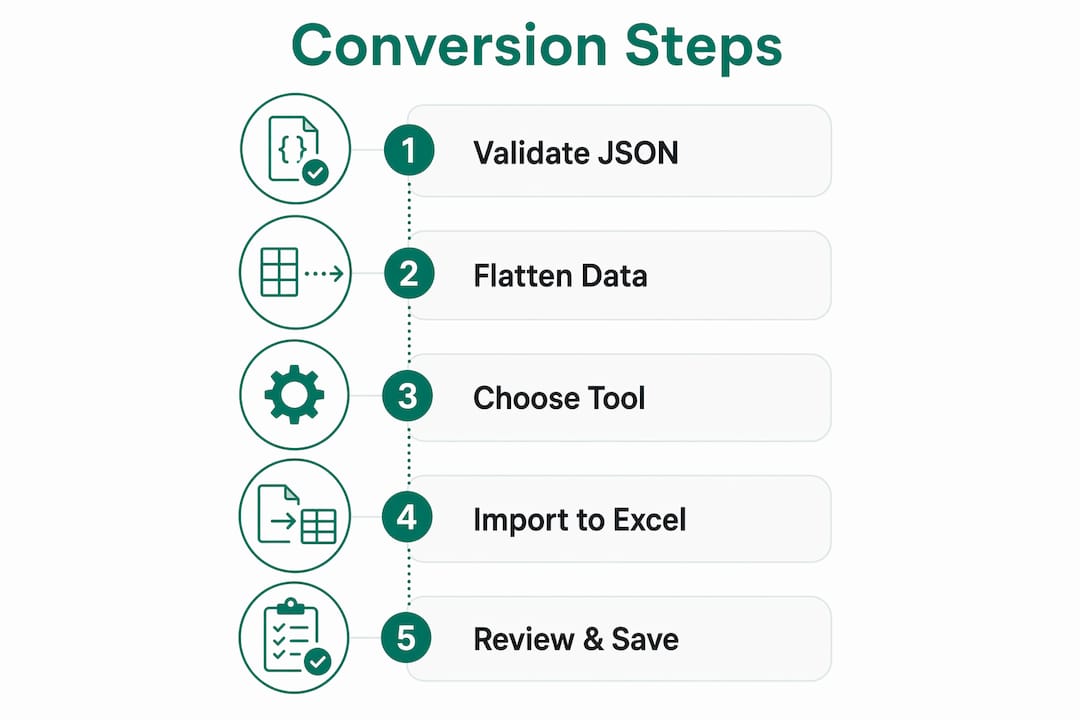
How to import JSON data to Excel with Power Query
Power Query is Excel’s built-in data transformation engine. It handle the structural shift from hierarchical JSON to tabular rows without any code.
Follow these steps:
- Open Excel and go to the Data tab.
- Click Get Data > From File > From JSON.
- Browse to your
.jsonfile and click Import. - The Power Query Editor opens. You will see a single column labeled “List” or “Record.”
- Click the Table button in the top-left of the preview pane to convert the list into rows.
- Click the expand icon (two arrows) on any column header to flatten nested objects into separate columns.
- Rename columns, remove unnecessary ones, and set correct data types using the column header dropdown.
- Click Close & Load to push the data into an Excel sheet.
Power Query auto-detects JSON structure and creates a reusable query. That means when your source JSON file updates, you click Refresh All and the sheet updates automatically. This is a major advantage for analysts who pull the same API data on a regular schedule.
Nested JSON fields expand via the column header icons in the Power Query Editor. Each nested object becomes its own column. If you have an object like address.city, Power Query labels it address.city after expansion.
Pro Tip: If Power Query shows an error on import, run your JSON through a free validator like JSONLint first. Invalid syntax, such as a trailing comma or missing bracket, is the most common cause.
Common errors to watch for:
- Invalid JSON syntax: Use a JSON validator to locate the problem line.
- Nested arrays not expanding: Right-click the column and choose “Expand to New Rows” instead of the default expand.
- Wrong data types: Power Query may read numbers as text. Use “Change Type” to fix this before loading.
Excel’s Text to Columns feature and CSV workarounds exist but handle hierarchical JSON poorly. Power Query is the correct built-in tool for this job.
How to export JSON to Excel programmatically with Python pandas
Python’s pandas library converts JSON to Excel in three lines of code. This approach suits analysts who work with large files, run conversions on a schedule, or need to reshape data before exporting.
Here is the setup and process:
- Install the required libraries:
pip install pandas openpyxl - Import pandas in your script:
import pandas as pd - Read your JSON file:
df = pd.read_json('your_file.json') - Flatten nested structures:
df = pd.json_normalize(data) - Export to Excel:
df.to_excel('output.xlsx', index=False)
Python pandas converts JSON to Excel in about three lines of code, and the process completes in under 10 seconds for typical files. That speed makes it practical for daily automated exports.
The pd.json_normalize() function is the key step for nested data. Nested JSON must be flattened before converting to an Excel table for proper tabular representation. The function creates dot-separated column headers that reflect the original nesting, so user.address.city becomes a readable column name rather than a raw object.
For JSON with nested arrays, use the record_path and meta parameters in pd.json_normalize(). This lets you specify which array to expand into rows and which parent fields to carry along as metadata columns.
Pro Tip: Always pass index=False to df.to_excel(). Without it, pandas writes the DataFrame index as an extra column in your Excel file, which clutters the output.
Pandas requires openpyxl to write .xlsx files. If you skip that installation, you get a ModuleNotFoundError the moment you call to_excel(). Install both libraries together from the start to avoid this.
Key advantages of the Python approach:
- Handles files with thousands of rows without performance issues
- Runs unattended as part of a scheduled script or data pipeline
- Supports custom column renaming, filtering, and data type casting before export
- Works across operating systems without a Microsoft license
What are the best practices when converting JSON to Excel?
The most common mistake analysts make is skipping the flattening step. Raw nested JSON exported directly produces cells containing text like {"city": "Austin", "zip": "78701"} instead of separate, usable columns. That output looks like data but cannot be sorted, filtered, or used in formulas.
Dot notation column headers are the standard solution. When you flatten with Power Query or pd.json_normalize(), nested keys become column names like address.city and address.zip. These names are clear and consistent, which makes downstream analysis predictable.
Inconsistent JSON schemas are the hardest problem to solve at scale. When some records have a field and others do not, both Power Query and pandas fill missing values with null or blank. Always audit your column completeness after conversion and decide whether to drop, fill, or flag those gaps before analysis.
Managing data type mismatches is equally important. JSON stores everything as strings, numbers, booleans, or null. Excel and pandas both make assumptions about types on import. A field containing "20260115" might import as a number instead of a date. Always check column types after loading and correct them before building any reports.
Common user errors include JSON syntax mistakes and incorrect data types during import. Using a JSON validator before import and adjusting data types in Power Query after import are the two most effective fixes.
Pro Tip: For recurring conversions, save your Power Query steps or Python script as a template. Reusing a tested workflow is faster and more reliable than rebuilding the conversion each time.
When to use Power Query versus Python comes down to two factors: frequency and complexity. Power Query suits regular imports of moderately nested JSON where you want a point-and-click refresh. Python suits complex schemas, large volumes, or any workflow where the conversion is one step in a larger automated process.
Key takeaways
Converting JSON to Excel requires flattening hierarchical data into tabular rows, and the right method depends on your skill level, data complexity, and how often you repeat the task.
| Point | Details |
|---|---|
| Excel Power Query is the no-code path | Use Data > Get Data > From File > From JSON in Excel 2016 or later. |
| Python pandas handles scale and automation | Three functions cover most cases: pd.read_json(), pd.json_normalize(), and df.to_excel(). |
| Flattening nested JSON is non-negotiable | Skipping this step produces raw object text in cells, not usable column data. |
| Validate JSON before importing | Syntax errors are the top cause of failed imports in both Power Query and pandas. |
| Match the method to the task | Power Query fits regular flat imports; Python fits complex schemas and scheduled pipelines. |
Why the method you choose matters more than you think
The choice between Power Query and Python is not just a technical preference. It shapes how maintainable your workflow is six months from now.
I have seen analysts build elaborate Power Query chains for data that changes schema every few weeks. Every schema change breaks the query, and fixing it manually each time costs more effort than the original setup saved. Python handles schema drift better because you can write conditional logic to account for missing or renamed fields.
On the other side, I have seen developers hand Python scripts to analysts who just needed a weekly report. The script breaks, no one knows how to fix it, and the analyst is stuck. Power Query is the right call when the end user is not a programmer and the data is reasonably consistent.
The honest answer is that most data teams need both. Power Query covers the routine, predictable imports. Python covers the edge cases, the large files, and the automated pipelines. Knowing when to use each is the actual skill, not mastering either tool in isolation.
For one-time conversions with small files, an online JSON converter is genuinely the fastest option. There is no shame in using the simplest tool that gets the job done. The goal is clean data in Excel, not a demonstration of technical sophistication.
— Jonathan
Fast JSON to Excel conversion with Jsonsupport
Jsonsupport builds tools that make JSON data easy to query and analyze. The free JSON to Excel converter at Jsonsupport.com works directly in your browser. No installation, no account, and no waiting.
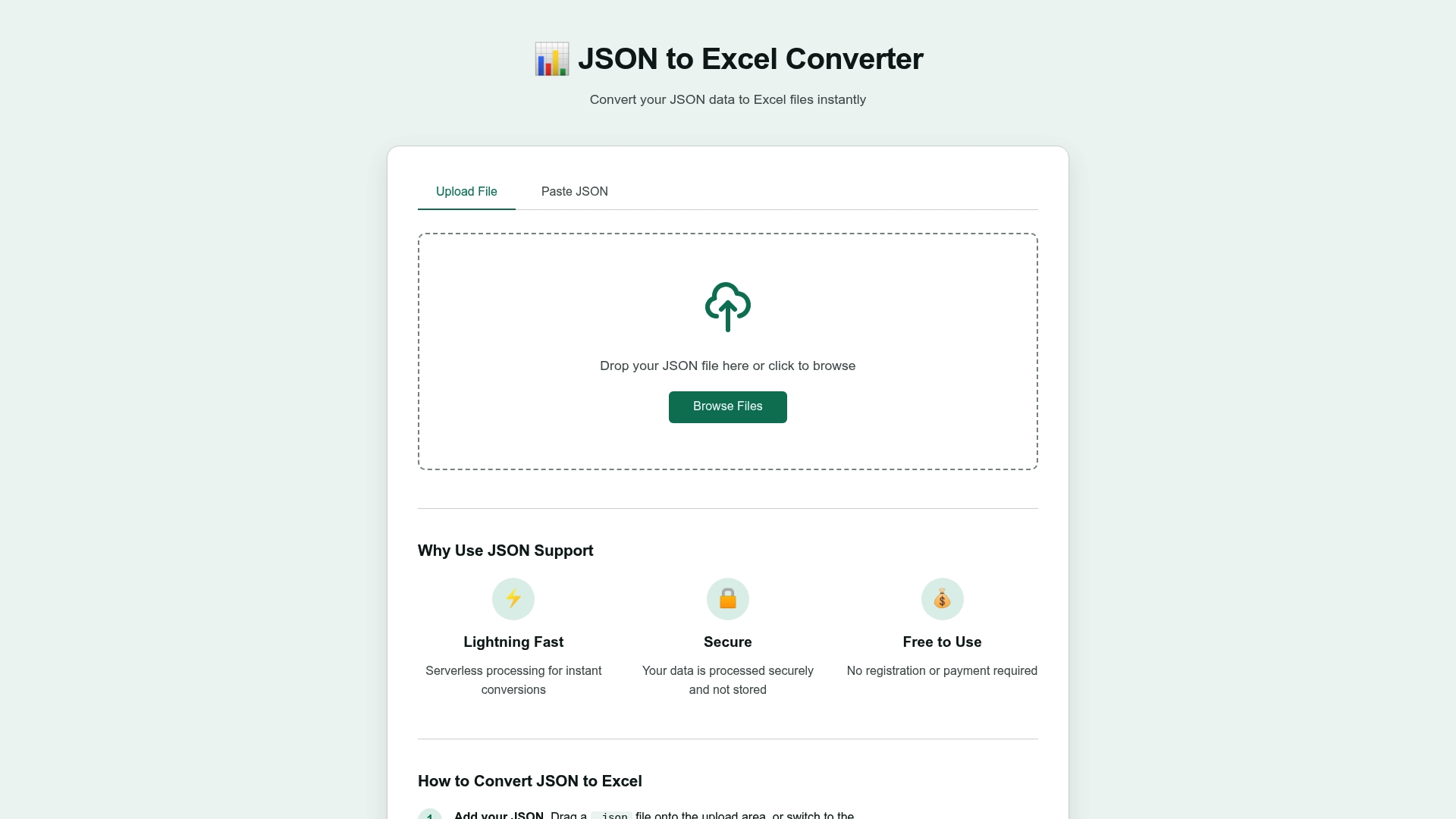
You paste or upload your JSON, and Jsonsupport converts it to a clean Excel sheet in seconds. The tool handles nested structures and produces a properly formatted .xlsx file ready for analysis. For data professionals who need a fast, secure result without setting up a Python environment or configuring Power Query, Jsonsupport is the direct path. Learn more about how the platform works on the Jsonsupport about page.
FAQ
How do I open a JSON file in Excel?
Excel 2016 and later do not open JSON directly. Use Data > Get Data > From File > From JSON to import it through Power Query.
What is the fastest way to convert JSON to Excel?
An online JSON to Excel converter tool is the fastest option for small, one-time files. For recurring or large-scale conversions, Power Query or Python pandas are more reliable.
Why does my JSON import show objects instead of columns?
Nested JSON objects appear as raw text when you skip the flattening step. In Power Query, click the expand icon on the column header. In pandas, use pd.json_normalize() before exporting.
Do I need to install anything to import JSON into Excel?
No installation is needed for Excel Power Query on Excel 2016 or later. For Python, install pandas and openpyxl with pip install pandas openpyxl before running your script.
Can I refresh Excel data when the source JSON file changes?
Yes. Power Query creates a reusable query that refreshes when you click Refresh All, pulling updated data from the same source JSON file automatically.