Raw JSON Is Hard to Read — Here's the Faster Way
July 22, 2026
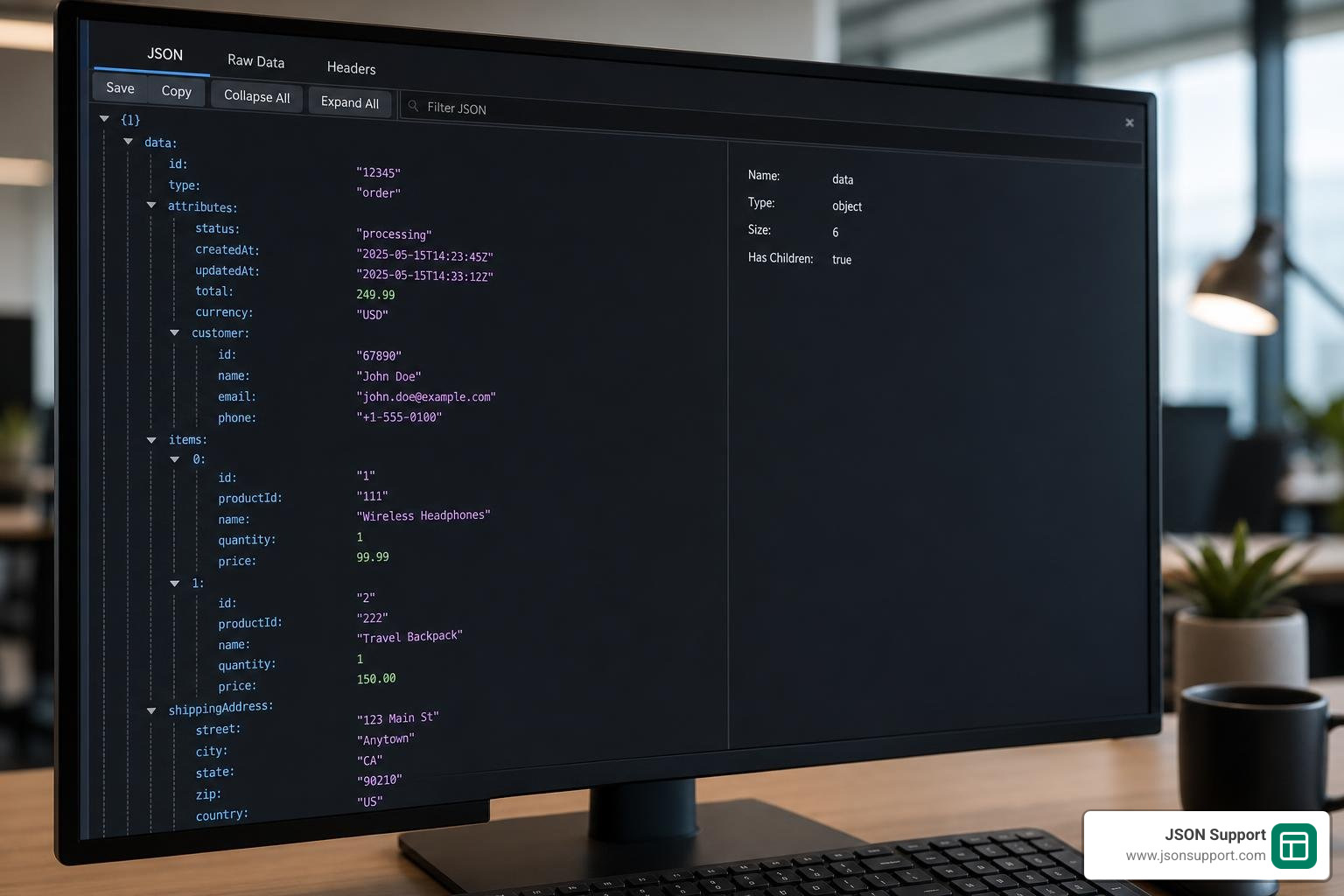
A json tree view transforms raw, minified JSON text into an interactive, collapsible hierarchy — so you can explore nested data without squinting at brackets and commas.
Quick answer: what does a JSON tree view do?
- Parses your raw JSON and displays it as an expandable tree
- Shows each object and array as a collapsible node (e.g., {3} = object with 3 keys, [5] = array with 5 items)
- Color-codes value types so strings, numbers, booleans, and nulls are instantly recognizable
- Lets you expand only the branches you care about, hiding everything else
- Runs entirely in your browser — your data never leaves your device
If you've ever received an API response or exported a config file and tried to make sense of it as a wall of raw text, you already know the problem. JSON is designed to be read by machines, not humans. Even a moderately nested payload — say, a user record with an address, a list of tags, and some metadata — becomes almost impossible to scan in its raw form.
The fix is simple: stop reading JSON as text and start exploring it as a tree.
A tree view takes that same data and turns it into something you can actually navigate. You click to open the sections you need. You ignore the rest. You find the value you're looking for in seconds instead of minutes.
This matters whether you're a developer debugging an API or an analyst who just needs to understand the shape of a dataset before converting it to Excel.
What is a JSON Tree View and Why Do You Need It?
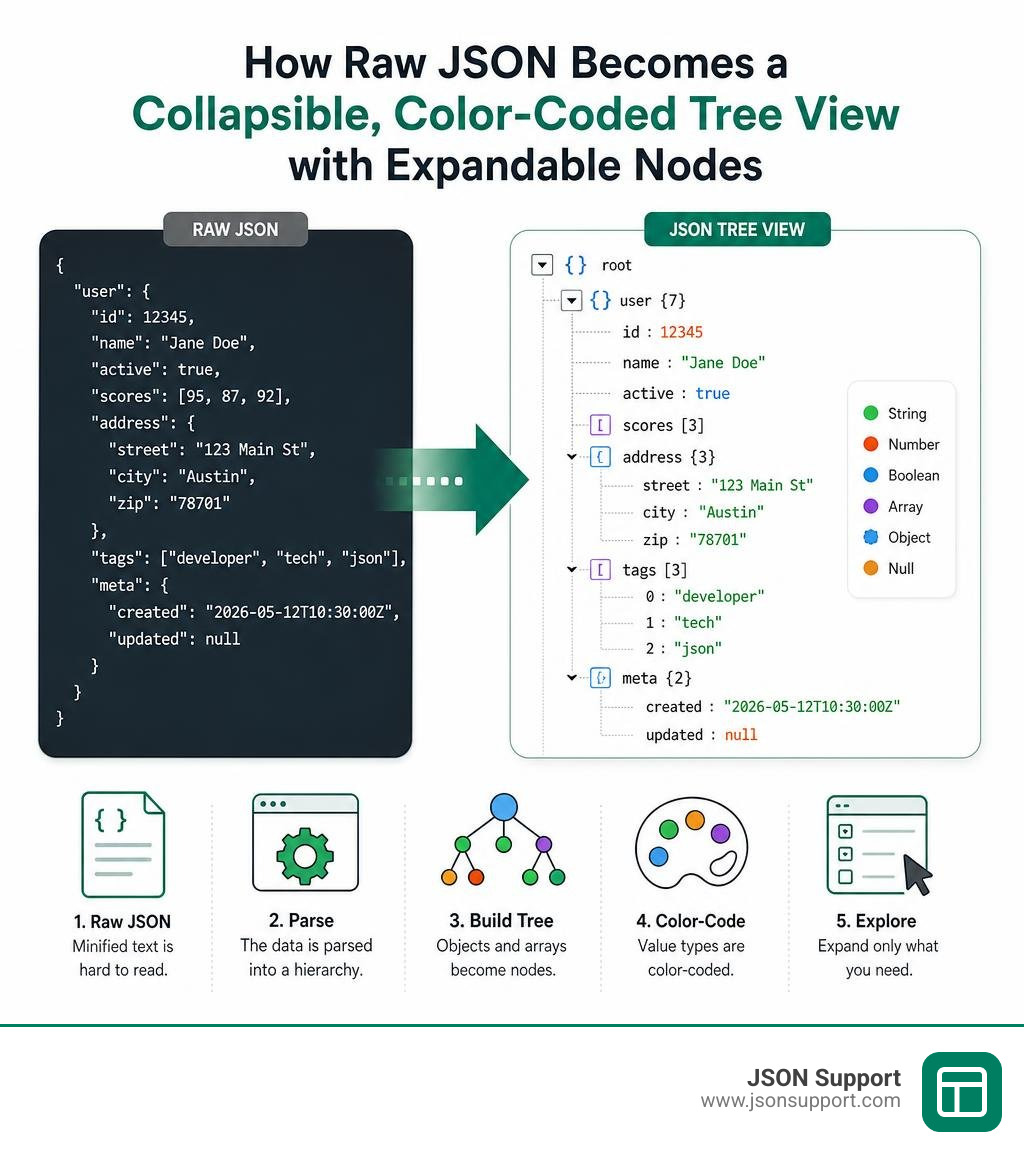
To understand why a json tree view is so crucial, we have to look at how JSON itself is built. At its core, JavaScript Object Notation is a hierarchical, tree-like data format. Sub-branches are nested within parent branches, which are nested within root elements. You can read more about these fundamental principles in our guide, What is JSON? A Beginner's Guide to the Data Format.
When a web API returns data, it typically minifies the payload to save bandwidth. Minification strips out all whitespace, tabs, and line breaks. While this is highly efficient for network transmission, it leaves humans with an unreadable block of text.
Even if you format that text with standard indentation, a deeply nested file can quickly span thousands of lines. If you only need to check a single field inside a nested object, you are forced to scroll endlessly, tracking indentation lines with your eyes. This creates severe visual fatigue and a high cognitive load.
A json tree view solves this by treating the data as a visual, interactive map. Instead of a static text file, you get a dynamic interface where every nested object and array is a collapsible node. This brings massive benefits:
- Immediate Structure Recognition: You see the overall shape of the data at a glance without being overwhelmed by millions of characters.
- Targeted Exploration: You can keep the majority of the document collapsed and only open the specific branches you are actively investigating.
- Reduced Cognitive Load: By hiding irrelevant data, you can focus on the exact key-value pairs that matter to your current task.
How a JSON Tree View Differs from a Formatter
Many people confuse a JSON formatter with a JSON tree viewer, but they serve different purposes.
A JSON formatter (often called a pretty-printer or beautifier) takes compact, minified text and adds standard indentation and line breaks. The output is still flat, static text. You read it linearly from top to bottom.
A json tree view, on the other hand, builds an interactive User Interface (UI). It parses the text into memory and renders a DOM tree where elements can be expanded or collapsed with a click. It also provides advanced tools like instant search, path copying, and node statistics.
Here is a quick comparison to help you understand when to use each:
| Feature | JSON Formatter | JSON Tree Viewer |
|---|---|---|
| Primary Output | Indented, static text | Interactive, collapsible UI |
| Navigation Style | Linear scrolling | Hierarchical expanding/collapsing |
| Best For | Copying clean code, simple linear reading | Exploring complex, deeply nested datasets |
| Search Capabilities | Standard text find (Ctrl+F) | Node filtering and path auto-expansion |
| Data Extraction | Manual highlighting | Instant JSONPath and dot-notation copying |
| Performance Limit | Handles very large text files easily | Limited by browser DOM rendering on giant payloads |
Anatomy of a JSON Tree View: Colors and Node Indicators
When you load data into a high-quality viewer, you will notice that it does not just show plain text. It uses specific visual cues to help your brain parse the structure instantly.
First, let's talk about color-coded value types. JSON has six value types defined in the official IETF standard, RFC 8259 (which was published in December 2017). A great tree viewer assigns a unique color to each of these types. For example:
- Object Keys: Often shown in dark blue or purple to stand out from the values.
- Strings: Typically rendered in green.
- Numbers: Usually highlighted in orange or light blue.
- Booleans (true/false): Often colored in amber or purple.
- Null Values: Generally shown in a muted gray.
By using this color-coded system, you can instantly distinguish a string from a number or identify a null value without having to read the characters.
Second, tree viewers use node indicators and child-count badges next to collapsed brackets. For example, if you see an object represented as {3} or an array as [5], this tells you exactly how dense that section is before you even click to expand it.
An indicator like {3} means the object contains 3 key-value pairs, while [5] indicates an array with 5 elements. This simple visual summary keeps you from opening empty or massive branches by accident.
How to Use a JSON Tree Viewer to Explore Nested Data Step-by-Step

Using a visual tree viewer is incredibly intuitive, but following a structured approach will save you even more time when dealing with complex datasets. Here is how to do it step-by-step:
Step 1: Load Your Data
Open your preferred tool, such as the JSON Tree Viewer - Collapsible Data Explorer - ToolboxKit or the JSON Tree Viewer - Interactive JSON Visualizer | JSON Utils . Paste your raw text into the input panel, or upload a .json file directly from your local drive.
Step 2: Start with a High-Level Collapse
When the tree first renders, some tools will auto-expand everything. If you are dealing with a large file, this can be overwhelming. We recommend clicking the "Collapse All" button immediately. This collapses the entire tree down to its root node, giving you a clean slate.
Step 3: Expand the Top-Level Nodes
Click the small toggle arrows (usually represented by chevrons like ">" or "v") to open the top-level keys. This lets you see the primary sections of your data. For instance, in an API response, you might see top-level keys like "status", "metadata", and "data".
Step 4: Drill Down to Your Target
Identify which top-level branch contains the information you need. If you are looking for a customer's email address, you would click the toggle next to "data", then expand the "customer" object, and finally locate the "email" string.
Step 5: Use Search to Jump Directly to Keys
If the tree is massive, do not browse manually. Use the built-in search bar. Typing a keyword will filter the tree, highlighting matching keys or values and auto-expanding the exact paths where they reside while hiding irrelevant branches.
Copying JSONPath and Dot-Notation Paths
One of the most powerful features of a visual tree explorer is the ability to extract data paths instantly.
When you are writing code (whether in JavaScript, Python, or Go), you often need to reference a specific nested property. Writing out the path manually — like response.data.users[0].profile.address.zipcode — is prone to typos.
A high-quality json tree view allows you to hover over any node and click a single button to copy its exact path to your clipboard.
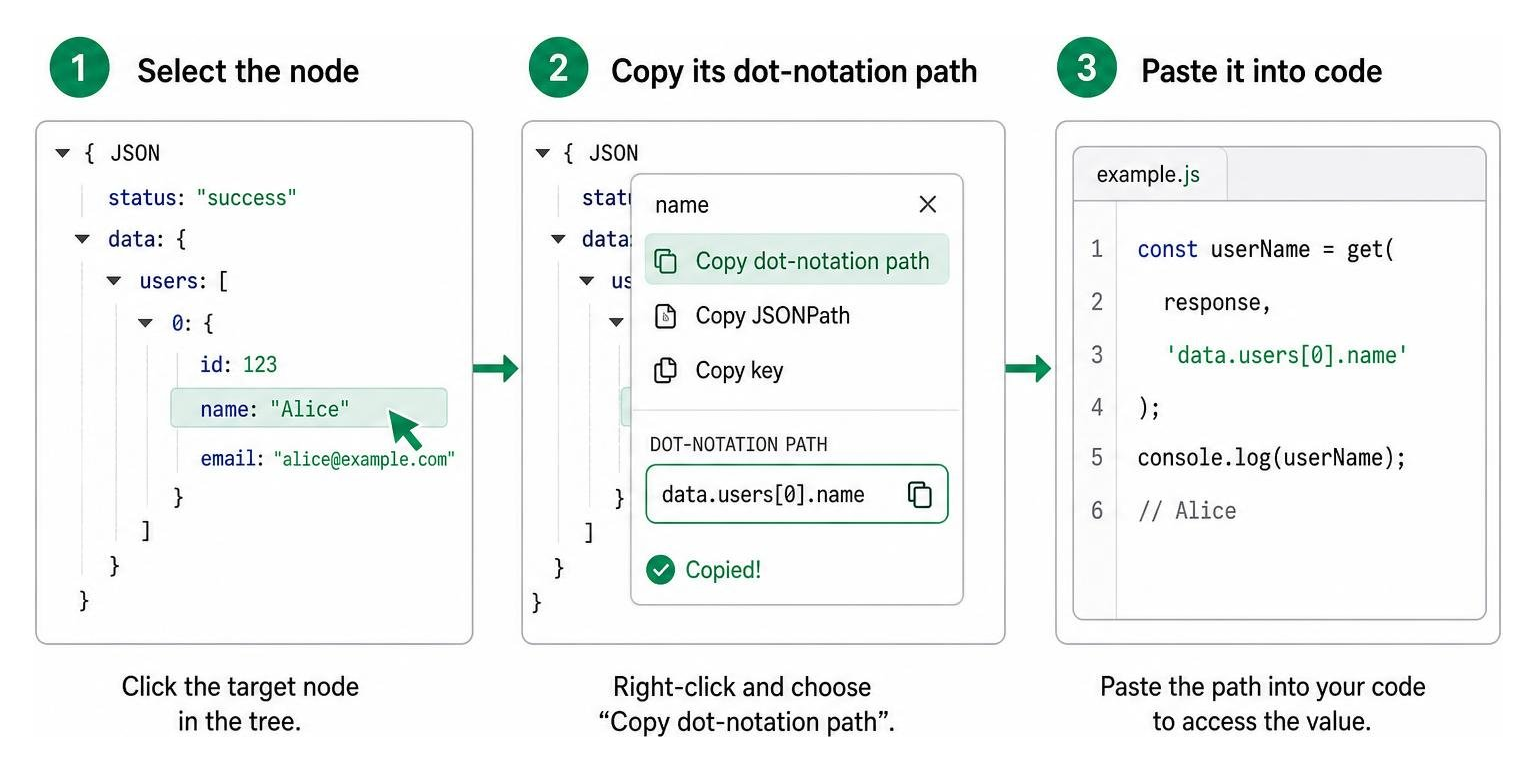
This path can be copied in two common formats:
- Dot Notation: A simple, language-standard path like
data.users[0].name. - JSONPath: A standardized query language formalized in RFC 9535 (published in February 2024) which uses syntax like
$.data.users[0].name.
By right-clicking a node and selecting "Copy JSONPath" or "Copy Path", you eliminate human error and speed up your development workflow.
Common Use Cases and Limitations of Visual Tree Explorers
Interactive tree views are incredibly versatile tools that fit into many daily workflows:
- Debugging API Responses: When testing REST or GraphQL endpoints, you can quickly inspect payloads, collapse giant arrays of items, and verify that metadata is correct.
- Exploring Configuration Files: Systems like Kubernetes, Terraform, and modern web applications rely heavily on nested configuration files (like
package.jsonortsconfig.json). A tree view makes these complex structures easy to audit. - Reviewing Database Exports: Document-oriented databases like MongoDB export records as nested structures. Using a tree view lets you trace relationships and check schema consistency.
- Onboarding New Developers: Showing a visual, color-coded tree is a fantastic way to explain your application's data models to new team members without making them read dry documentation.
However, standard JSON tree views do have limitations, especially when compared to command-line utilities or tabular formats. For example, if you are working with newline-delimited JSON streams, a standard viewer won't work out of the box. To understand how these stream formats differ, take a look at our article, What is NDJSON.
Handling Large Payloads and Browser Performance Limits
The biggest limitation of browser-based tree viewers is file size.
Because these tools run client-side inside your browser, they have to parse the JSON string into a JavaScript object and then render DOM elements for every single key, value, bracket, and comma.
A 10MB JSON file can easily translate into hundreds of thousands of DOM nodes. If a browser tries to render all of these at once, the tab will run out of memory, freeze, and crash. The memory cost of browser-based parsing is typically 2 to 3 times the raw string size because both the raw text and the parsed object must exist in memory simultaneously.
To solve this, advanced tools use virtualized tree rendering (also known as virtual DOM or incremental rendering). Instead of rendering the entire tree at once, a virtualized viewer only renders the nodes that are currently visible in your scroll viewport. As you scroll down, it dynamically destroys off-screen nodes and builds new ones.
This technique allows tools like the open-source project pedrosousa13/JSON-Bonsai to handle payloads with over 100,000 nodes smoothly without lagging.
When to Use Command-Line Tools Like jq Instead
While a visual json tree view is unmatched for visual ergonomics and open-ended exploration, there are times when you should close your browser and open your terminal.
If you are dealing with files larger than 10MB, or if you need to automate a repetitive task, command-line tools are far superior. The undisputed king of command-line JSON processing is jq.
You should transition from a GUI tree viewer to a CLI tool like jq when:
- The File is Huge:
jqis written in highly optimized C and can stream and filter gigabyte-sized files that would crash any web browser. - You Need Automation: If you need to extract the email addresses of 5,000 users from a daily database dump, you cannot do that manually in a browser. A simple
jqscript can filter, reshape, and export that data in milliseconds. - You are Scripting: If you need to pipe the output of an API call directly into another tool or save it to a file, the command line is the only logical choice.
Frequently Asked Questions about JSON Tree Visualization
Is my data secure when using an online JSON tree viewer?
This is a critical question. Many developers and analysts paste sensitive API payloads — containing authentication tokens, personal customer data, or proprietary business records — into public websites without thinking.
If an online tool uploads your data to a database or processes it on a remote server, your data is at risk. However, high-quality, privacy-first tools run 100% client-side.
This means that when you paste your JSON, the parsing and tree rendering happen entirely within your local browser's memory using native JavaScript APIs. No data is ever transmitted over the network to a server.
Always check the privacy policy of any tool you use. To guarantee absolute security, look for open-source tools or browser extensions that work entirely offline.
What are the best tools and extensions for viewing JSON as a tree?
Depending on your workflow, there are several outstanding tools available for visualizing JSON:
- Online Web Tools: For quick, zero-install visualization, JSON Tree Viewer: Visualize & Search JSON Data (Free) | DDaverse and JSON Viewer - View JSON Data in Tree offer clean, secure, client-side tree rendering.
- Browser Extensions: If you frequently view raw API URLs in Chrome or Firefox, a browser extension is a must-have. Extensions automatically intercept JSON responses and render them as beautiful trees directly in your tab. We highly recommend TreeJSON — JSON Viewer, Tree View, YAML & XML Formatter - Chrome Web Store . It is open-source, privacy-first, and built on Chrome's secure Manifest V3 standard.
- IDE Plugins: If you write code, you can view trees directly inside your editor. For VS Code, there are excellent marketplace extensions that let you select any JSON file and click "Reveal in Tree" to navigate your code in a sidebar panel.
Can I edit JSON data directly within a tree view?
Most basic JSON tree viewers are read-only; they are designed purely for visualization and data exploration. If you want to make changes, you typically have to edit the raw text in the input panel and regenerate the tree.
However, some advanced tools feature inline editing. These allow you to click on a value or key directly within the tree structure and type changes, or even perform basic CRUD operations (adding, moving, or deleting nodes) before downloading the modified file.
Conclusion: From Visualizing to Sharing
A json tree view is an essential tool for visual ergonomics. It bridges the gap between machine-readable nested code and human visual processing, saving you hours of cognitive fatigue and endless scrolling.
But what happens when you are finished exploring your data and need to share it with non-technical stakeholders?
Your project managers, business analysts, or marketing teams do not want to navigate a collapsible tree, and they certainly do not want to install developer extensions. They want the data in a clean, organized spreadsheet where they can run formulas, sort columns, and build charts.
That is where we come in. At JSON Support, we bridge the gap between developer-friendly JSON and human-friendly business analysis.
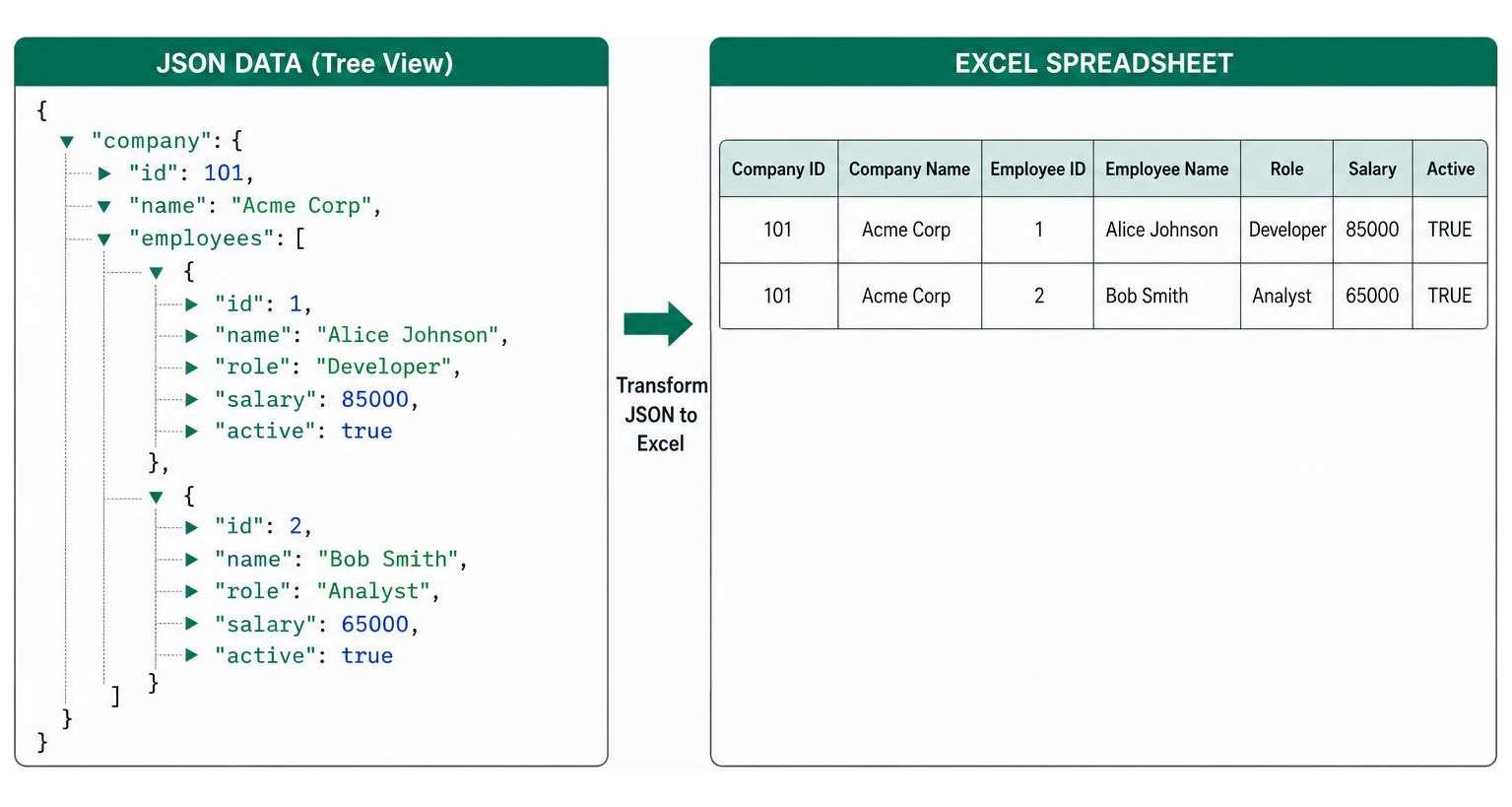
We offer a free, browser-based, and serverless conversion tool that lets you transform your finalized JSON data into clean Excel files instantly. Because our tool runs entirely client-side, your sensitive data is 100% private and never stored or uploaded to any server.
To learn more about how to prepare your datasets for seamless conversion, read our comprehensive How to Convert JSON to Excel: A 2026 Guide.
When you are ready to convert your nested data into a beautiful spreadsheet without any registration or software installs, head over to the JSON Support homepage and get it done in seconds!