When You Need to Convert JSON to XLSX Online Fast
July 22, 2026

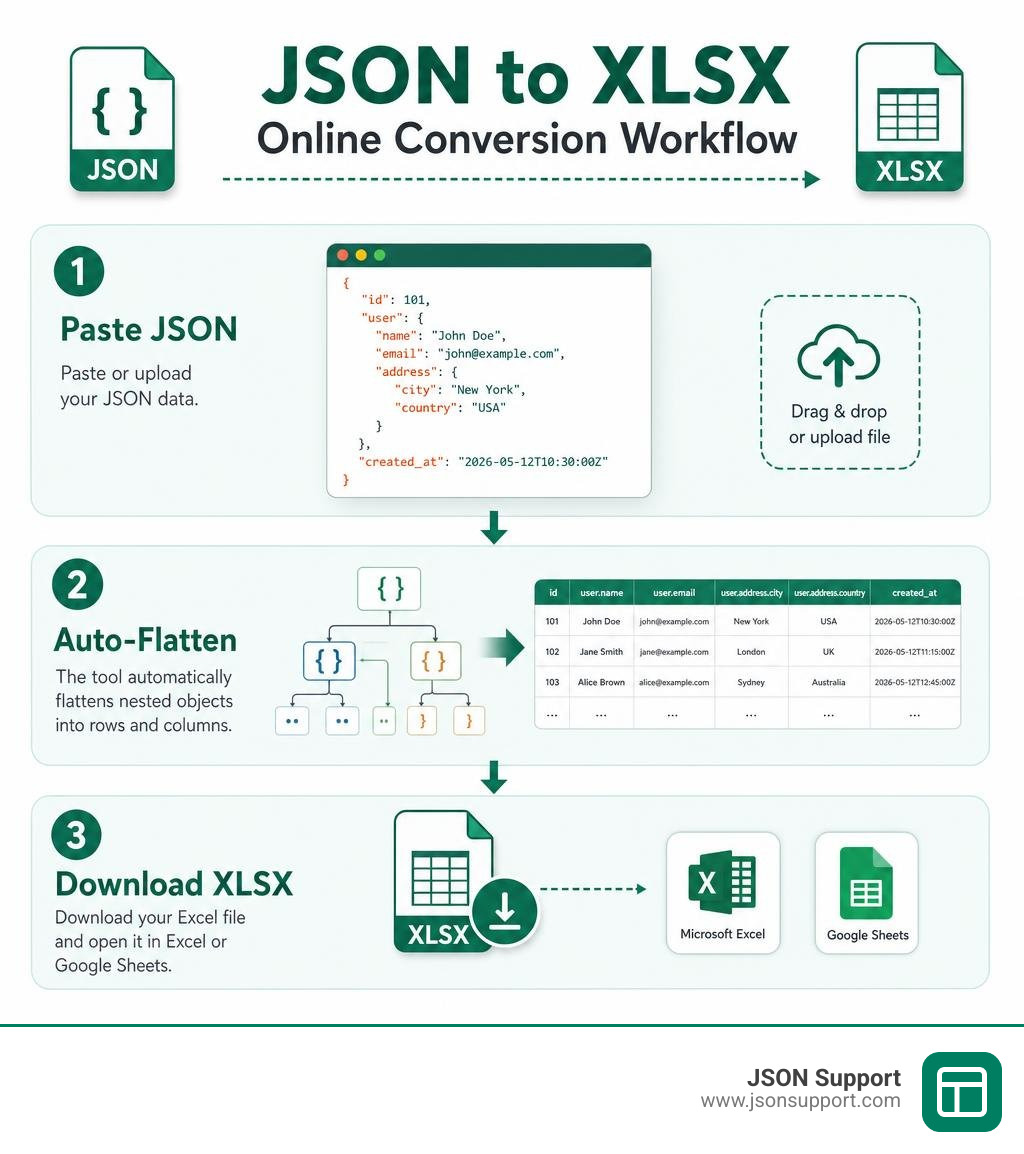
The fastest way to convert JSON to XLSX online is to use a free, browser-based tool — no signup, no installation, no code required. Here's how it works in three steps:
- Paste or upload your JSON data into the converter
- Click convert — the tool flattens your JSON into rows and columns
- Download your
.xlsxfile, ready to open in Excel or Google Sheets
Most browser-based converters process files under 1 MB instantly, and handle files up to 10 MB without any account or payment.
If you've ever received a JSON file from a developer or pulled data from an API, you know the problem: JSON is readable by machines, but it's nearly impossible to scan, filter, or share as-is. There's no easy way to sort it, apply formulas, or hand it to a colleague who just wants a spreadsheet.
That's exactly why converting JSON to Excel is one of the most common tasks for analysts, product managers, and anyone who works with API data.
The good news? You don't need Python, Power Query, or any technical setup. A handful of free online tools can do the job in seconds — right in your browser, with your data never leaving your device.
This guide compares the best options so you can pick the right one for your data.
Why You Need to Convert JSON to XLSX
In the modern digital landscape of 2026, JavaScript Object Notation (JSON) has established itself as the undisputed universal standard for web APIs, NoSQL databases, and application exports. It is lightweight, flexible, and perfectly structured for machines. However, what is highly efficient for an API backend is incredibly frustrating for human eyes.
When you open a raw JSON file, you are greeted with a wall of curly braces, square brackets, nested keys, and quotation marks. It is a structure designed for nested hierarchy, not quick scanning.
On the other hand, Microsoft Excel remains the world's most popular and powerful software for business analysis, financial modeling, and report creation. Converting JSON to the modern Excel format (XLSX) bridges the gap between machine-readable developer feeds and human-friendly business workflows.
For a complete background on how this data format operates before you begin transforming it, you can read our guide: What is JSON? A Beginner's Guide to the Data Format.
Once your data is successfully imported into an XLSX spreadsheet, you gain immediate access to a suite of analytical tools:
- Universal Shareability: You can send an XLSX file to stakeholders, clients, or non-technical team members, confident that they can open it instantly in Microsoft Excel, Google Sheets, LibreOffice, or Apple Numbers.
- Advanced Data Manipulation: You can apply filters, sort records by multiple criteria, create pivot tables, and build interactive charts to visualize trends.
- Native Formulas: Unlike plain text JSON, a proper XLSX conversion maps numbers as true numeric cells, allowing you to instantly run mathematical formulas like SUM, AVERAGE, and VLOOKUP.
- Tax and Compliance Reporting: Many industries and government systems — such as the automated GST portals in India — require structured transaction logs to be compiled into spreadsheets for auditing and tax filings.
Key Methods to Convert JSON to XLSX
Depending on your technical expertise, your data security requirements, and the size of your dataset, several paths are available to convert JSON to XLSX online or offline.
To help you decide which path is right for your specific workflow, we have compiled a detailed comparison table below:
| Feature / Metric | Client-Side Online Tool | Excel Power Query | Python (pandas & openpyxl) |
|---|---|---|---|
| Technical Skill Required | None (Drag & Drop) | Moderate | High (Coding required) |
| Setup Time | Instant (0 minutes) | 3 - 5 minutes | 10 - 15 minutes |
| Data Privacy | 100% Secure (Local processing) | High (Local processing) | High (Local processing) |
| Best For | One-off conversions, quick reports | Recurring imports, local files | Large-scale automation, pipelines |
| File Size Limits | Up to 10MB (Browser-dependent) | Excel row limit (1,048,576 rows) | Unlimited (System memory limit) |
| Cost | 100% Free | Requires Excel License | 100% Free / Open Source |
For a comprehensive deep dive into each of these approaches, check out our detailed walkthrough: How to Convert JSON to Excel: A 2026 Guide.
How to Convert JSON to XLSX Online Using Browser-Based Tools
For the vast majority of daily tasks, a browser-based, client-side converter is the ultimate solution. In the past, online converters forced you to upload your sensitive JSON files to external servers, which posed significant security risks and took time to upload and download.
Today, modern web standards allow tools to perform 100% client-side execution. This means the conversion is powered by your own computer's browser using local JavaScript engines (such as SheetJS and WebAssembly).
When you use a high-quality client-side converter, your data is processed entirely in your browser's local memory. No files are uploaded to any server, no registration is required, and the conversion is practically instantaneous. It is the perfect blend of absolute data privacy and blazing-fast performance.
How to Convert JSON to XLSX Online for API Data Integration
If you are a data analyst or marketer, you likely retrieve raw data payloads from REST APIs or platforms like Postman. While developers can read these JSON responses natively, business users need them in spreadsheets.
To convert an API response directly, you can copy the raw JSON payload from your API client, paste it into an online converter, and download the formatted XLSX file in seconds. This manual conversion workflow is highly effective for ad-hoc analysis, debugging API payloads, or creating quick marketing reports.
For automated or recurring API workflows, you can explore programmatic methods outlined in our dedicated resource: API to Excel: A Practical Guide for Data Analysts.
Handling Complex Structures: Nested Objects, Arrays, and Layouts
JSON is hierarchical, meaning it supports deeply nested objects and arrays of varying lengths. Excel, however, is a rigid two-dimensional grid of rows and columns. Mapping a multi-layered JSON tree into a flat table requires smart transformation rules.
1. Flattening Nested Objects (Dot Notation)
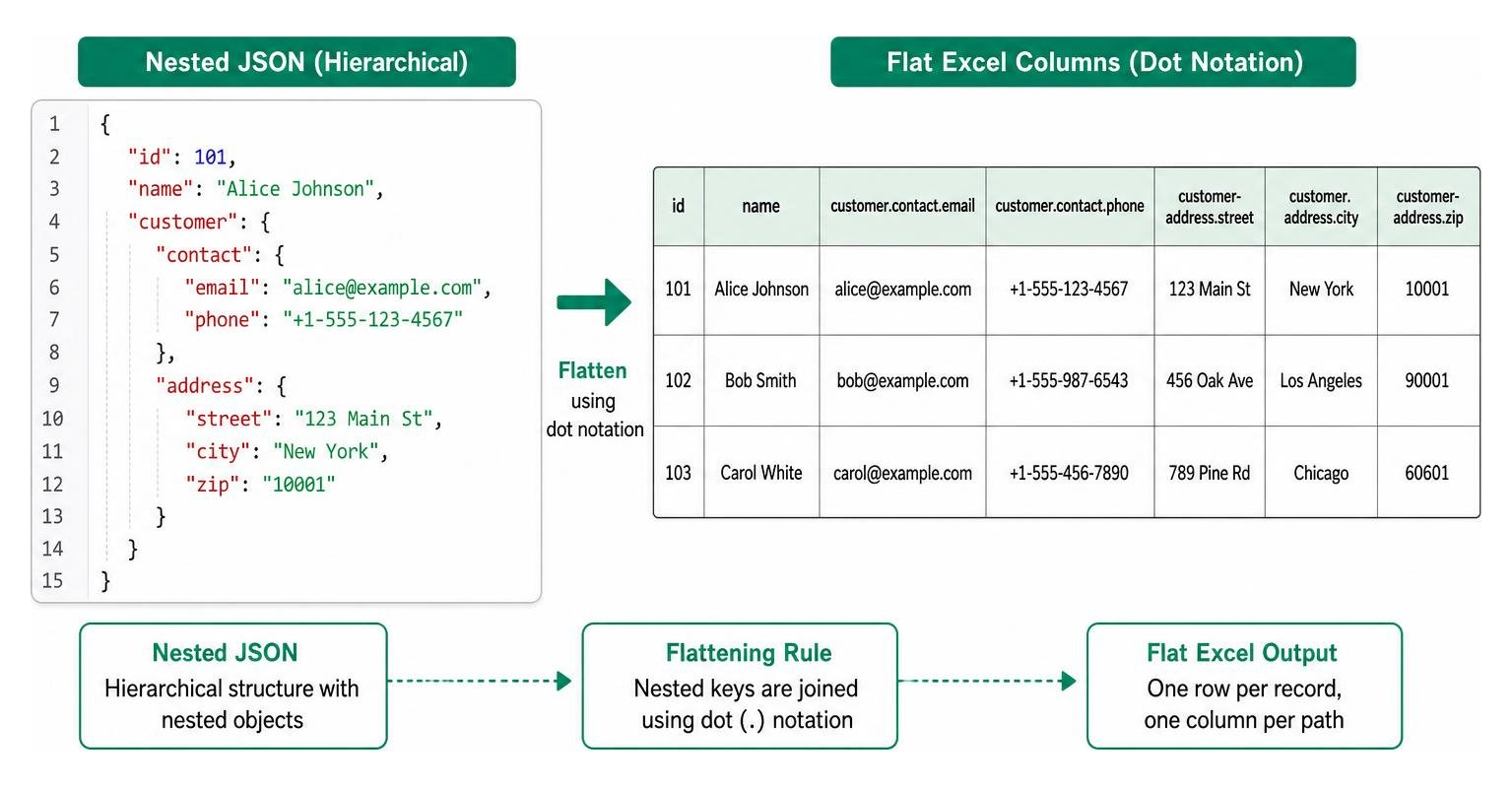
When a JSON object contains nested child objects, a smart converter will automatically flatten the hierarchy using dot notation. For example, if you have a customer record with a nested contact object:
- Raw JSON: "customer": { "contact": { "email": "hello@jsonsupport.com" } }
- Excel Column Header: customer.contact.email
This ensures that every nested property gets its own dedicated column, preserving the logical relationship without breaking the spreadsheet layout.
2. Handling Arrays
Arrays can contain either primitive values (like a list of tags) or nested objects (like a list of items in an order).
- Primitive Arrays: Simple lists of strings or numbers are typically joined together using a separator character (such as a semicolon) and placed into a single Excel cell. For example, a tags array containing "SaaS" and "Productivity" becomes "SaaS; Productivity" in the spreadsheet.
- Arrays of Objects: This is the classic "one-to-many" relationship (e.g., one order containing multiple line items). A robust converter handles this by repeating the parent fields (like Order ID and Date) for each element in the array, ensuring that every nested item gets its own clear row in the final spreadsheet.
3. Choosing the Right Layout Style
Depending on how your JSON is structured, you can customize the output layout:
- Flat Table Layout: Every object in the JSON array becomes a single row, and every unique key becomes a column. This is the ideal layout for databases and standard list views.
- Key/Value Layout: Useful for single, deeply nested configuration files or individual profiles where a standard table would result in a single row with hundreds of columns. Instead, the keys run down the first column and their corresponding values run down the second column.
- One Row Per Record: Ensures that even if your objects contain nested arrays, each main record occupies exactly one row, with the nested array elements expanded horizontally across indexed columns (e.g., item[0].name, item[1].name).
Choosing the Right Format: XLSX vs. CSV
When exporting structured data, you will often have to choose between CSV (Comma Separated Values) and XLSX. While both formats can be opened in spreadsheet applications, they serve very different purposes.
To help you decide which format fits your specific needs, let's explore the structural and functional differences:
- File Structure: CSV is a plain-text format where records are separated by newlines and fields are separated by commas. XLSX is a modern, XML-based binary format (technically a compressed ZIP archive containing XML files) developed by Microsoft.
- Row and Column Limits: Both formats can hold massive amounts of data, but Microsoft Excel itself has strict application limits. When opening files in Excel, XLSX supports up to 1,048,576 rows and 16,384 columns per worksheet. Legacy formats like XLS (Excel 97-2003) are restricted to just 65,536 rows and 256 columns.
- Formatting and Styles: CSV files cannot store any formatting, column widths, font styles, colors, or formulas. The moment you close a CSV file, all visual adjustments are lost. XLSX files preserve your column widths, header styles, gridlines, cell types, and active mathematical formulas.
- Multiple Sheets: An XLSX file can contain multiple worksheets within a single workbook, allowing you to organize complex data logically. CSV is strictly a single-sheet format.
- Data Integrity: Excel often struggles to parse special characters or non-ASCII text in CSV files unless the user manually configures the file encoding (such as UTF-8). XLSX natively preserves character encodings and prevents numeric strings (like zip codes or phone numbers with leading zeros) from being corrupted or truncated.
For a detailed breakdown of when to deploy each format in your data pipeline, review our comparative analysis: Converting JSON to Excel vs CSV: Which Should You Use?.
Frequently Asked Questions About How to Convert JSON to XLSX Online
Is my data secure when using an online JSON to XLSX converter?
Yes, provided you choose a converter that processes your data entirely client-side. Traditional online converters upload your files to external servers, which can be a serious security concern if your JSON contains sensitive business data, customer details, or proprietary API logs.
By using a tool built on a data-less, serverless architecture, your files never leave your device. The entire parsing, flattening, and Excel generation process happens locally inside your browser's sandbox. Once the conversion is complete, the XLSX file is generated directly in your system memory for download, ensuring absolute privacy.
Can I convert large JSON files to XLSX online, and what are the file size limits?
Yes! Most modern browser-based converters can easily handle JSON files up to 10MB. Because the conversion runs locally, the performance depends on your device's processor and available memory.
For files under 1MB, the conversion is instantaneous. For files between 1MB and 10MB, the browser may take a couple of seconds to process. To keep the interface responsive during larger conversions, advanced tools run the parsing process in the background using Web Workers (background browser threads), preventing your tab from freezing. If your dataset is larger than 10MB or contains hundreds of thousands of rows, we recommend splitting the file or using Python-based command-line scripts.
What should I do if my JSON data has inconsistent fields or missing values?
Inconsistent schemas are incredibly common in NoSQL database exports or API feeds. For example, one user record might have a middle name field, while another record completely lacks that key.
When a smart converter encounters inconsistent fields, it scans the entire JSON array to compile a master list of every unique key. It then creates a dedicated column for every discovered key. If a specific record is missing a value for a column, the converter simply leaves that cell empty (blank) in the Excel sheet.
To ensure the best output, always validate your JSON syntax before starting the conversion. A single missing quotation mark, unquoted key, or trailing comma can cause the parsing engine to fail.
Conclusion
Converting complex, machine-readable JSON into clean, human-friendly Excel sheets doesn't have to be a headache. Whether you are a developer sharing API logs with project managers, a data analyst preparing a business report, or a business owner managing customer spreadsheets, online conversion tools bridge the gap instantly.
At JSON Support, we have built a free, browser-based JSON-to-Excel converter designed with a privacy-first approach. Operating on a 100% data-less, serverless architecture, our tool processes all your data locally on your machine. This means your files are never uploaded, stored, or shared, giving you instant, secure, and registration-free conversions in seconds.

Ready to turn your raw JSON into professional, formatted spreadsheets with zero hassle? Try our free browser-based converter today at JSON Support.