Why a JSON Viewer Tree Makes Complex Data Easy to Read
July 22, 2026

A json viewer tree turns raw, hard-to-read JSON text into a clickable, collapsible hierarchy — so you can actually see the structure of your data without counting brackets or scrolling through walls of text.
The best JSON viewer tree tools in 2026:
| Tool | Type | Best For |
|---|---|---|
| JSON Crack | Online | Visual graph exploration |
| JSONLint Tree Viewer | Online | Quick paste-and-view |
| jsonviewer.stack.hu | Online | Simple, private viewing |
| JSON Viewer Pro | Chrome Extension | Auto-formatting API responses |
| TreeJSON | Chrome Extension | Privacy-first, open source |
| JSON Tree Visualizer | VS Code Plugin | In-editor SVG diagrams |
If you receive JSON files from APIs or databases and need to make sense of them fast — without writing any code — a JSON viewer tree is the quickest way to do that.
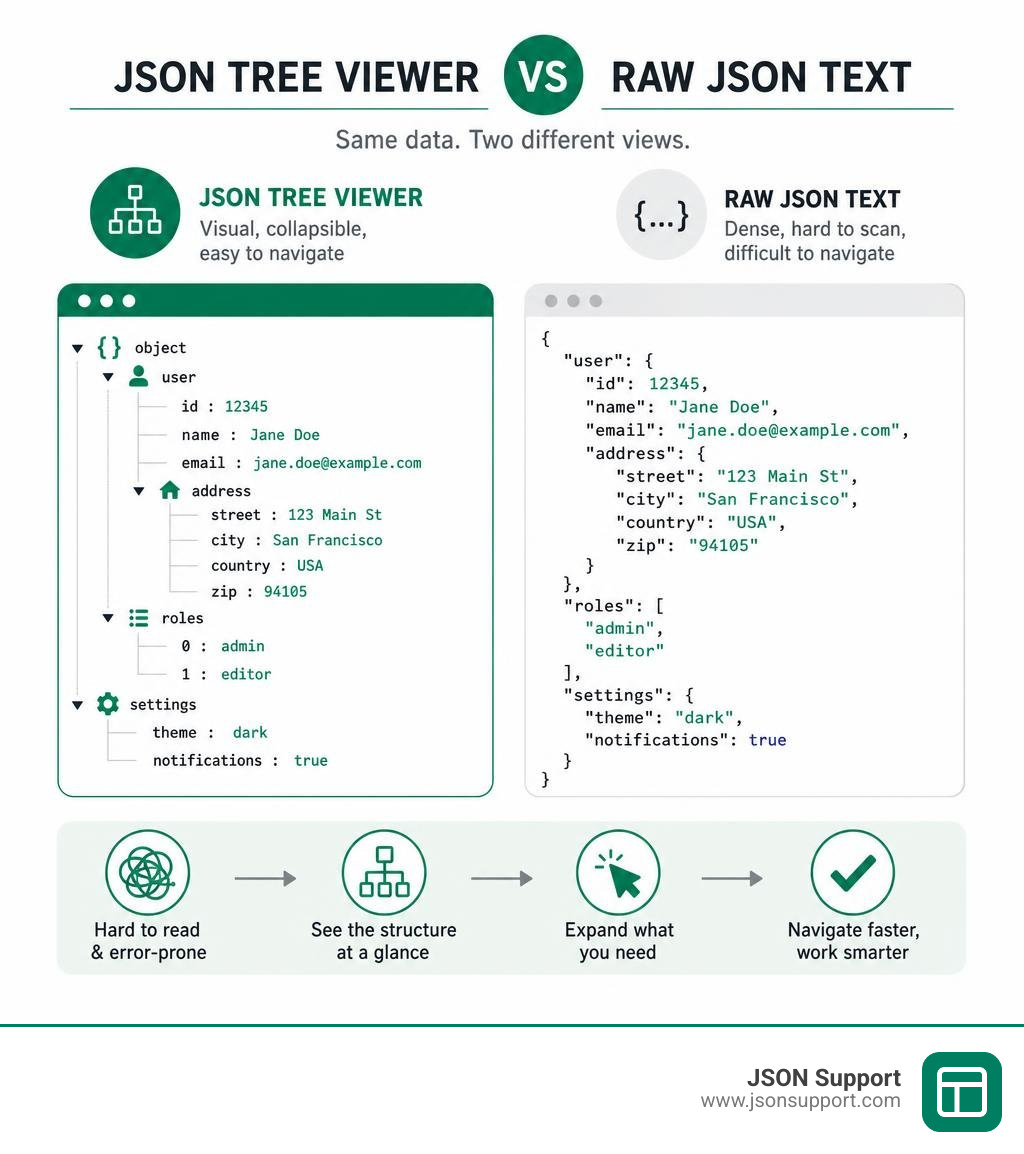
Raw JSON is fine for machines. For humans, it's a different story. A single API response can contain hundreds of lines of nested objects and arrays. Without a visual tool, finding the field you need means manually tracing brackets and indentation — a slow and error-prone process.
A tree viewer solves this by rendering each object and array as an expandable node. You click to open what you need, and collapse everything else. It transforms JSON from a parsing exercise into something you can navigate.
That's why tools in this category are used by developers, analysts, QA engineers, and DevOps teams alike — anyone who has to make sense of structured data quickly.
What is a JSON Viewer Tree and How Does It Work?
To understand why a visual tree is such a game-changer, we first have to look at how we interact with data. At its core, a json viewer tree is a specialized utility that parses raw JavaScript Object Notation text and renders it as an interactive, hierarchical diagram.
When you load a file or paste text into one of these tools, the underlying engine runs a parser (similar to the native browser JSON.parse function) to validate the syntax. Once validated, instead of simply printing the text back to you with some spaces and line breaks, it maps the parent-child relationships of the data. Every curly brace representing an object and every square bracket representing an array becomes a folder or a branch.
This hierarchical display matches the natural tree-like architecture of nested data. If you are new to this format, you can learn more about the basics in our guide: What is JSON? A Beginner's Guide to the Data Format.
The magic of this process lies in collapsible nodes and dynamic syntax highlighting. Instead of being forced to read a 10,000-line file from top to bottom, you can look at a clean, high-level summary. For example, a collapsed node might simply show "users: Array(100)" or "metadata: Object{5}". With a single click, you can dive into the exact branch you need, keeping the rest of your screen clean and free of distractions.
To help you see how these visual explorers differ from standard tools, we have put together a quick comparison matrix:
| Feature | Static JSON Formatter | Interactive JSON Tree Viewer |
|---|---|---|
| Primary Output | Indented plain text | Collapsible, interactive UI tree |
| Navigation | Scroll vertically through text | Expand or collapse nested folders |
| Data Summary | None (must read line-by-line) | Shows array lengths and object counts |
| Querying | Manual text search (Ctrl+F) | Path filtering and JSONPath extraction |
| Performance | Fast for giant raw files | Smooth scrolling via virtualized rendering |
JSON Tree Viewer vs. JSON Formatter
It is very common to mistake a formatter for a tree viewer, and you will often see developers use these terms interchangeably. However, they serve two fundamentally different purposes in your workflow.
A JSON formatter (often called a beautifier or pretty-printer) takes minified, single-line text and adds standard text indentation (typically 2 or 4 spaces) and line breaks. The output is still just flat, static text. If your file is 50 levels deep, a formatter will push your content so far to the right that you will spend half your time scrolling horizontally.
A tree viewer, on the other hand, builds a complete interactive user interface. It replaces static indentation guides with clickable toggle icons (such as small triangles or folder graphics). It also calculates real-time metadata, meaning you can instantly see how many elements are inside an array without counting them yourself. In short, formatters are great for preparing code to be saved in a file, while tree viewers are designed for active exploration and debugging.
Understanding Colors and Node Indicators in a JSON Viewer Tree
When you open a tree viewer, you will immediately notice a vibrant splash of colors. This is not just for aesthetics; it is a carefully designed system of visual type differentiation inspired by popular code editors like VS Code and Sublime Text.
By assigning unique colors to specific data types, these tools allow your brain to use visual pattern recognition rather than manual reading. While color schemes can vary slightly between applications, most modern tree viewers follow a standardized color legend:
- Red or Dark Blue: Typically reserved for object keys, helping you quickly distinguish property names from their values.
- Green or Orange: Used for string values, representing text data.
- Light Blue or Teal: Used for numeric values (both integers and floats).
- Purple or Bright Pink: Used for booleans (true/false) and null values, making these critical logical states stand out instantly.
- Gray: Used for brackets, braces, and structural punctuation.
Alongside colors, node indicators give you instant context. When an object or array is collapsed, the viewer will display a structural summary next to the key. For instance, seeing "address: Object{4}" tells you that expanding the node will reveal exactly four sub-properties. Similarly, "tags: Array(12)" tells you there are twelve items in that list. If a node is completely empty (such as {} or []), the expand arrow will disappear entirely, saving you from clicking on empty branches.
When to Use a Tree Viewer vs. Command-Line Tools like jq
For terminal power users, command-line utilities like jq or grep are the gold standard for parsing data. However, there are specific situations where a visual tree viewer is vastly superior.
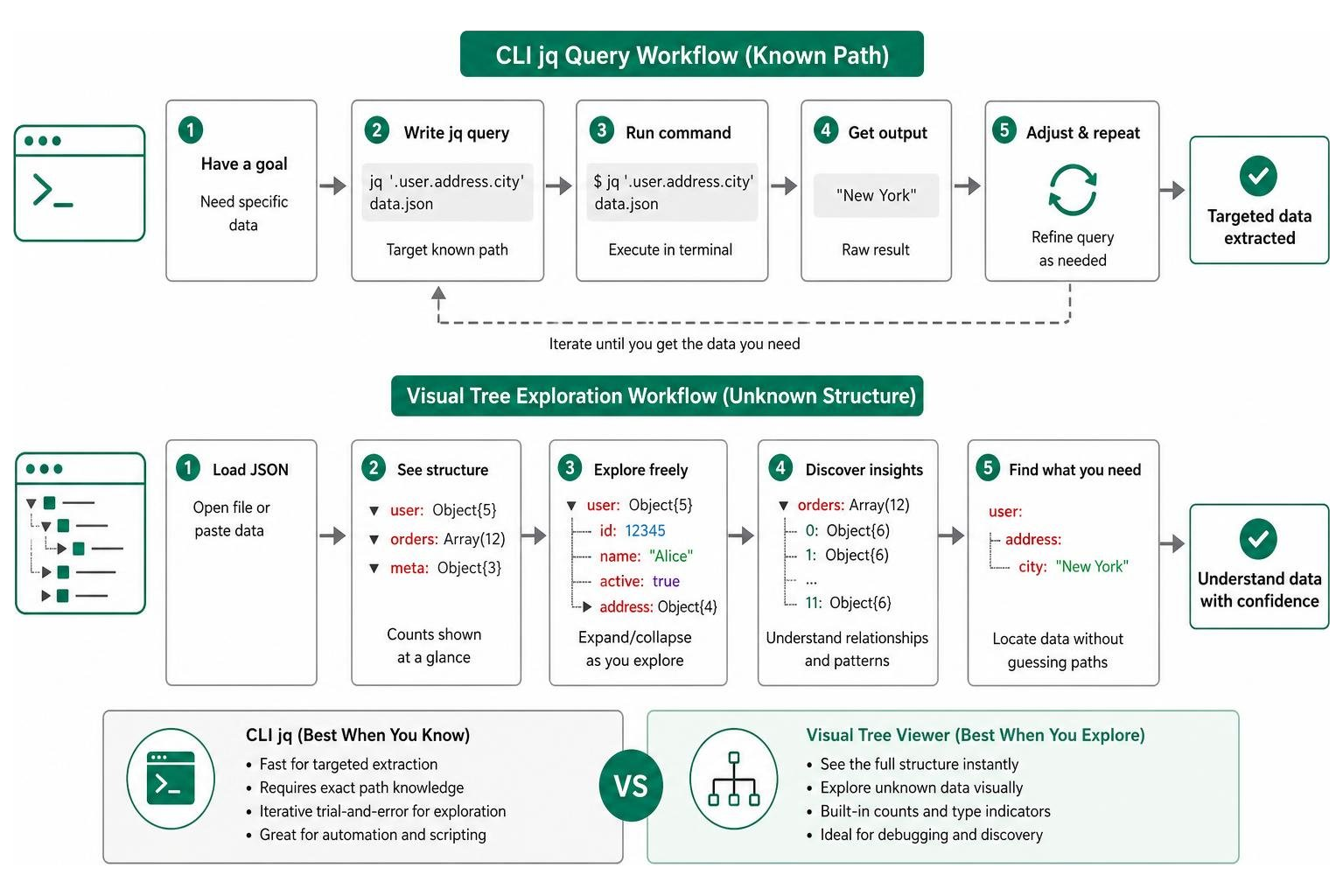
Command-line tools are incredibly powerful when you already know exactly what you are looking for. If you have a massive dataset and need to extract a specific field using a known path, running a quick jq script in your terminal is fast and efficient. If you are working with Python-based scripts to process these structures, you might also find our tutorial on How to Convert JSON to CSV in Python helpful.
However, if you are dealing with a completely unfamiliar API response or debugging a complex webhook payload, you often do not know the schema beforehand. Using jq for exploratory work requires a tedious cycle of guessing paths, running commands, and clearing your terminal screen.
A visual tree viewer shines in these exploratory phases. It allows you to freely wander through the data hierarchy, expanding and collapsing branches on the fly. It reduces the cognitive load of mapping out data relationships, making it the perfect companion for designing API integrations and inspecting complex configurations.
Key Features to Look For in a JSON Tree Visualizer
Not all tree viewers are created equal. When choosing a tool for your daily workflow, there are several key features you should look for to ensure a smooth, productive experience:
- Search and Filter Capabilities: A great viewer should let you type a query and immediately highlight matching keys or values, automatically expanding the branches where those matches live while hiding irrelevant data.
- JSONPath and Dot-Notation Extraction: You should be able to click on any nested value and instantly copy its precise access path to your clipboard.
- 100% Client-Side Processing: For security and speed, the tool should run entirely inside your browser using local JavaScript, ensuring your sensitive data never travels to an external server.
- Theme Customization: Support for dark and light modes helps reduce eye strain during long debugging sessions.
Navigating Deeply Nested Data and Copying JSONPath
When working with modern web APIs, data structures can easily reach five, ten, or even twenty levels of nesting. Navigating these depths manually is an absolute nightmare.
To solve this, advanced tree viewers integrate path navigation helpers, often referred to as breadcrumbs. As you click deeper into the tree, a path bar at the top of the screen updates in real-time, showing you exactly where you are (for example: store.book[0].author).
Even better, top-tier tools allow you to copy the exact JSONPath or dot-notation path of any node with a single click or right-click. This conforms to standard path specifications like the RFC 9535 JSONPath standard. Instead of manually typing out a complex path for your code and risking a typo, you simply click the node, copy the path, and paste it directly into your JavaScript, Python, or PHP application.
Performance Tips for Large Files in a JSON Viewer Tree
Because online tree viewers run inside your web browser, they are bound by the performance limits of the browser's Document Object Model (DOM). While the native browser engine can parse hundreds of megabytes of raw text in milliseconds, rendering thousands of interactive HTML elements for a tree view can easily cause your browser tab to lag or crash.
If you are working with files larger than 1MB (or anything with more than 5,000 individual nodes), keep these performance-saving tips in mind:
- Collapse All on Load: Ensure your viewer is configured to load with all top-level nodes collapsed. Rendering only the top-level branches keeps the DOM lightweight.
- Use Search Wisely: Instead of manually expanding thousands of folders to find a value, use the search bar to filter and render only the matching nodes.
- Leverage Virtual Scrolling: Look for tools that utilize virtualized rendering. These smart viewers only generate HTML elements for the nodes that are currently visible on your screen, allowing you to scroll smoothly through massive datasets.
- Know the Limits: If your file is exceptionally large (over 10MB), skip the interactive tree viewer and use a plain text formatter or a local command-line tool to avoid memory limits.
Best JSON Tree Viewer Tools for 2026
To help you find the perfect tool for your specific setup, we have compiled a curated roundup of the absolute best online viewers, browser extensions, and IDE plugins available in 2026.

Top Online JSON Tree Viewers
Web-based tools are incredibly convenient because they require zero installation. You simply bookmark the page, paste your data, and get to work. Here are the top online options:
- ToolboxKit: The JSON Tree Viewer - Collapsible Data Explorer - ToolboxKit is an excellent, lightweight option designed for fast, secure exploration. It features an intuitive, clean interface with robust search and path-copying features.
- JSON Utils: If you want a straightforward, highly reliable visualizer, the JSON Tree Viewer - Interactive JSON Visualizer | JSON Utils is a fantastic choice. It is highly optimized for navigating complex API payloads and includes built-in array counters.
- DDaverse: For those who want detailed statistics about their data shape, the JSON Tree Viewer: Visualize & Search JSON Data (Free) | DDaverse offers a gorgeous UI. It automatically calculates maximum nesting depth and total node counts, which is perfect for schema planning.
- JsonifyPro: The JSON Viewer - Interactive Tree Explorer | JsonifyPro provides an ultra-smooth, responsive navigation experience. It is built with developers in mind, offering quick toggles to expand or collapse entire subtrees instantly.
- Xerobit: If you need to edit your data as you explore it, the JSON Viewer & Editor Online — Tree, Visualizer, Formatter | Xerobit is a top-tier hybrid tool. It features a side-by-side view with a live, debounced editor on the left and an interactive tree viewer on the right.
Best Browser Extensions and IDE Plugins
If you find yourself inspecting data all day, installing a browser extension or code editor plugin will save you countless hours of copy-pasting.
- TreeJSON (Chrome Extension): If you value privacy and open-source transparency, the TreeJSON — JSON Viewer, Tree View, YAML & XML Formatter - Chrome Web Store is an absolute must-have. It is fully Manifest V3-compliant, runs 100% locally with zero tracking, and automatically formats JSON, YAML, and XML payloads directly in your browser tabs.
- JSON Viewer Pro (Chrome Extension): With over 300,000 active users and a stellar 4.7 rating on the Chrome Web Store, this extension is a developer favorite. It automatically intercepts raw API responses in your browser and transforms them into beautiful, collapsible trees and charts, complete with custom CSS support.
- JSON Tree Visualizer (VS Code Plugin): For developers who want to visualize data without leaving their IDE, this extension renders actual interactive SVG tree diagrams directly within a VS Code webview panel. It is perfect for mapping out complex configurations or local state files.
Frequently Asked Questions about JSON Tree Viewers
Is my data safe when using an online JSON tree viewer?
Data privacy is a massive concern when working with proprietary business records, API tokens, or user database exports. Many older online formatters send your pasted text to their backend servers for processing, which is a major security risk.
To ensure your data is safe, you should always use tools that perform 100% client-side processing. Modern browsers are incredibly powerful, and there is absolutely no technical reason for an online viewer to upload your data to a server.
When you use reputable, local-first tools, the entire parsing and rendering process happens securely in your browser's local memory. For transit security, always ensure the tool is served over an encrypted HTTPS connection.
Can I edit JSON directly within a tree viewer?
Most standard tree viewers are strictly read-only, designed purely for visual exploration. However, advanced developer utilities feature integrated side-by-side editors.
These hybrid editor-viewers run a live parser in the background with "debouncing" (typically around 300ms). This delay prevents the interactive tree from flickering or throwing errors while you are mid-keystroke. As you type and fix syntax errors in the text panel, the visual tree updates in real-time, making it incredibly easy to debug and refine your payloads.
How do I convert visualized JSON data into Excel or CSV?
While a tree viewer is perfect for developers exploring hierarchical data, non-technical business teams usually need this information in a familiar, flat spreadsheet format.
Because JSON can be deeply nested with complex arrays, converting it to a table requires "smart flattening." This process uses dot notation to turn nested parent-child paths into standard Excel column headers. If you need to hand off your data to business analysts or project managers, you can learn how to handle this transition in our step-by-step guides:
- Learn the general conversion process: How to Convert JSON to CSV
- Get the complete, modern guide: How to Convert JSON to Excel: A 2026 Guide
Conclusion
A high-quality json viewer tree is an indispensable tool for simplifying complex, nested data structures. Shifting your workflow from reading raw text to visually navigating interactive branches saves time, prevents errors, and significantly reduces cognitive fatigue.
Once you have used a tree viewer to explore, validate, and clean your data, you may need to share those insights with the rest of your team. That is where we come in. At JSON Support, we offer a completely free, browser-based JSON-to-Excel conversion tool.
Our converter runs entirely in a secure, serverless environment directly in your browser. There is no registration required, no file size limits up to 10MB, and your sensitive data never leaves your device. It is the perfect, private way to bridge the gap between machine-readable JSON and human-friendly spreadsheets!