How to Convert JSON to CSV: A Step-by-Step Guide
July 21, 2026
Pulling data out of a JSON API response or a MongoDB export and turning it into rows and columns is a task almost every developer or analyst runs into eventually. If you've searched how to convert json to csv, you're probably staring at a nested object right now, wondering how to flatten it without writing a custom script every single time.
The short answer: you can write a Python script with the built-in csv and json modules, use a command-line tool like jq, or skip the code entirely with an online converter. Each method works, but they differ a lot in speed, technical skill required, and how well they handle nested arrays and objects.
This guide walks through all three approaches so you can pick the one that fits your workflow. We'll cover the manual coding method step by step, then show a faster no-code option for when you just need a clean spreadsheet fast, without spinning up a script or worrying about data privacy on someone else's server.
What to know before converting JSON to CSV
Before you touch any tool, understand why this conversion isn't always a clean one-to-one swap. JSON is hierarchical by design, letting you nest objects inside objects and stack arrays of values under a single key. CSV, on the other hand, is strictly tabular: rows and columns, nothing more. When you convert one to the other, you're forcing a tree structure into a flat grid, and that always involves decisions about what gets kept, dropped, or duplicated.
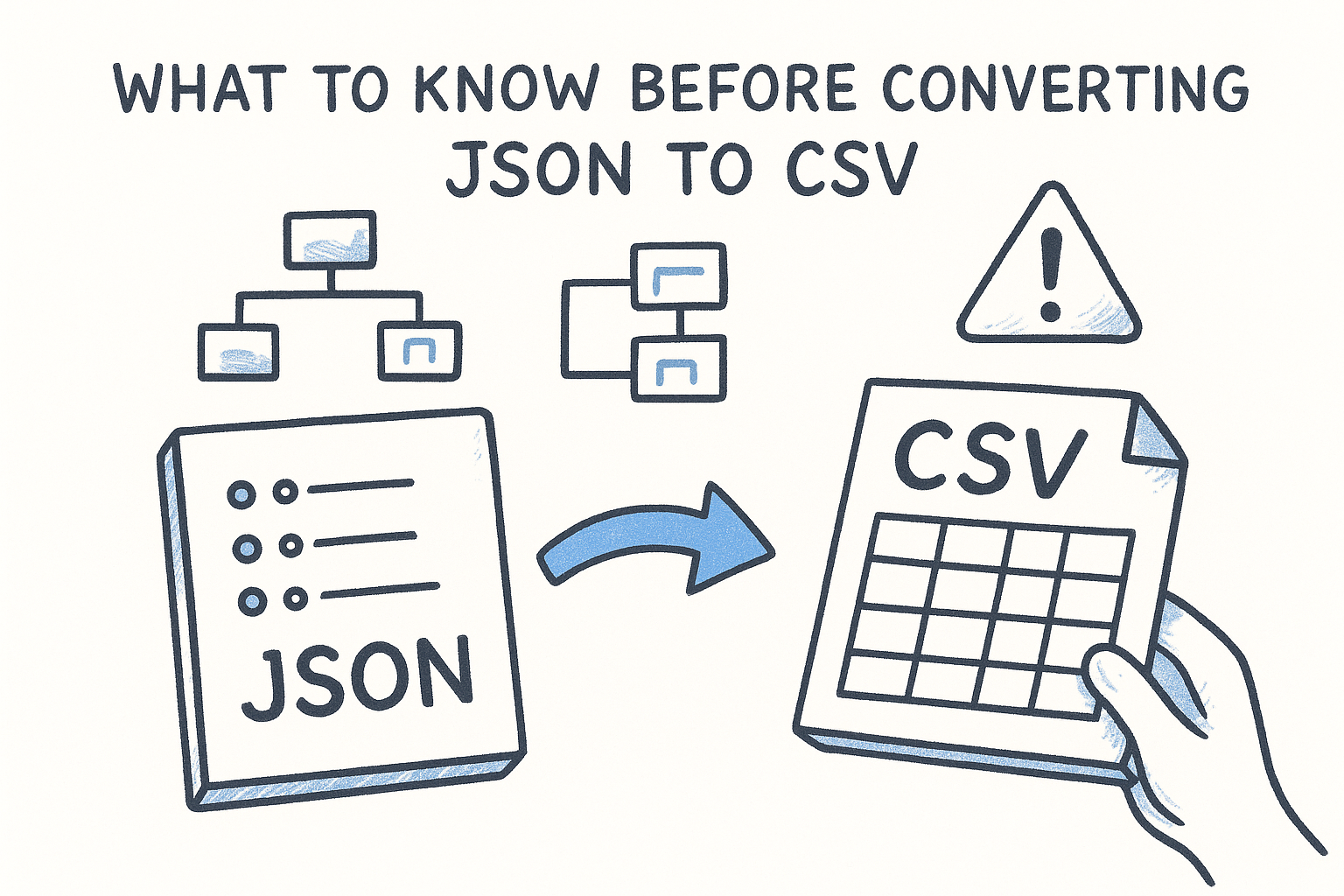
The biggest headache is nested arrays. Say you have a JSON object representing an order, and that order contains an array of line items. Do you create one row per line item and repeat the order details on each row? Do you squash the array into a single comma-separated cell? Different tools and scripts handle this differently, and the wrong choice can silently corrupt your data or make it unreadable in Excel.
If your JSON has nested arrays, decide how you want them flattened before you convert, not after.
Inconsistent schemas across records cause similar trouble. If some objects in your JSON array have a field that others don't, most converters will still produce a column for it, just leaving blank cells where the field is missing. That's usually fine, but it's worth checking your output for unexpected empty columns rather than assuming every field aligned perfectly.
Finally, think about scale and sensitivity. A 50-row JSON file behaves differently than a 500,000-row export from a production database, and a config file with API keys deserves more caution than public sample data. Keep these three questions in mind: how nested is your data, how consistent is the schema, and how sensitive is the content. They'll determine which method in this guide actually fits your situation.
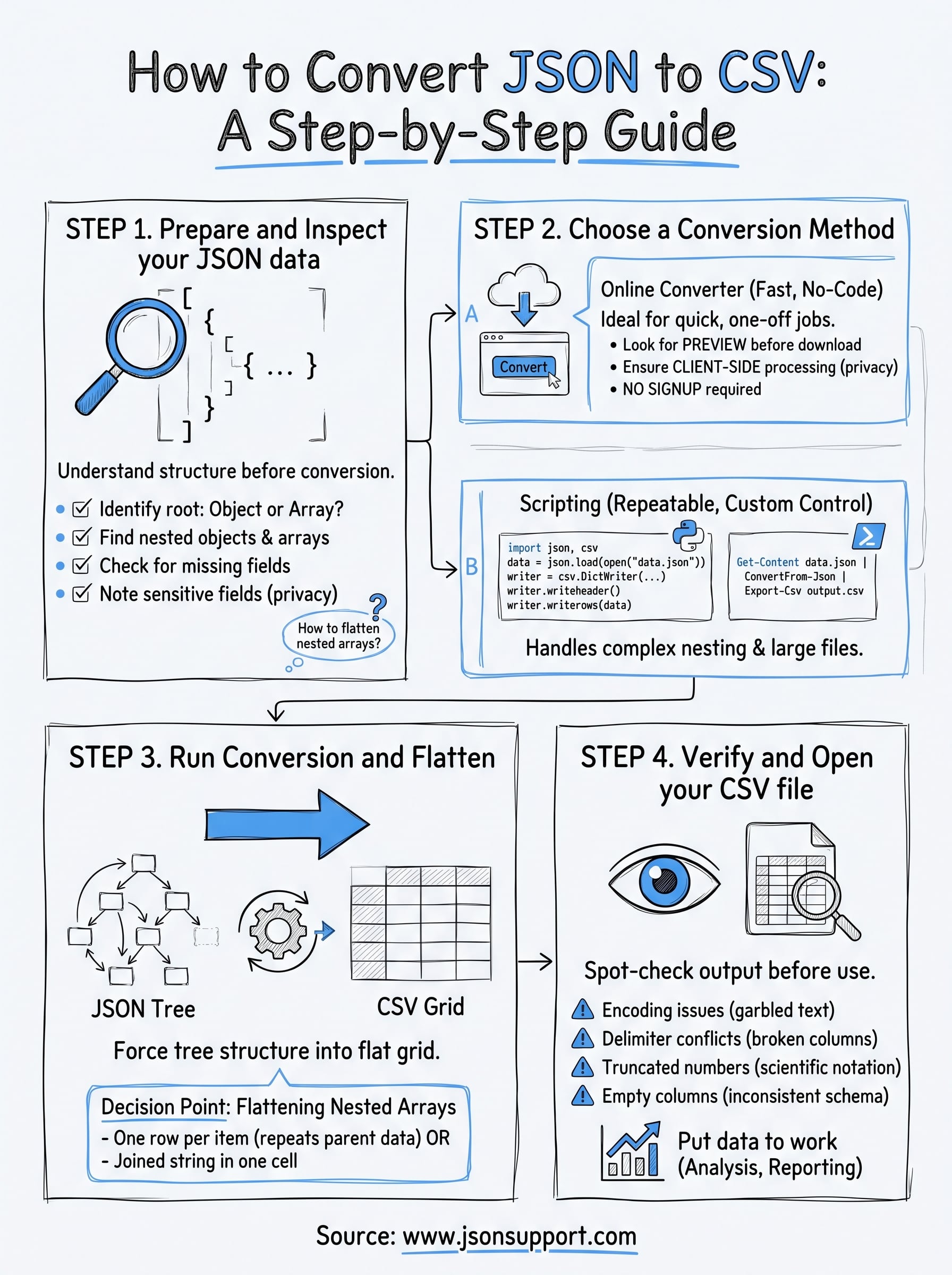
Step 1. Prepare and inspect your JSON data
Before you convert anything, open the file and actually look at its shape. Inspecting the structure first saves you from redoing the conversion after you spot a nested array three levels deep that your tool flattened wrong. Paste a sample into a JSON viewer or your code editor and check whether you're looking at a single object, an array of objects, or an object wrapping an array.
You can't fix a bad conversion after the fact as easily as you can plan around it before you start.
Run through this checklist before moving to any conversion method:
- Identify the root structure: is it
[{...}, {...}]or{"data": [{...}]}? - Find nested objects: note which keys hold objects instead of plain values.
- Find nested arrays: these need a flattening decision (one row per item, or a joined string).
- Check for missing fields: scan a few records to see if keys are consistent across the array.
- Note sensitive fields: flag any API keys, emails, or personal data you might want to strip out first.
If your JSON came from an API response, check the docs or the response headers for a schema description. It'll tell you which fields are optional, which saves guesswork later. For database exports from MongoDB or Firebase, remember that documents in the same collection can have wildly different fields, so don't assume uniformity just because the first ten records look clean.
Step 2. Convert JSON to CSV with an online tool
For a one-off conversion, an online converter beats writing a script every time. You paste or upload your JSON, the tool renders a preview so you can catch nested arrays before they wreck your columns, and you download a finished file in seconds. This is the fastest path when you're not comfortable with code or you just need a quick spreadsheet for a meeting.
Choosing an online converter
Not every converter treats nested data the same way, so check a few things before you commit to one:
- Does it show a preview of the flattened structure before you download?
- Does it process client-side or serverless, so your data isn't stored on a server somewhere?
- Does it require email signup, or can you just grab the file and go?
- Does it handle arrays inside objects without silently dropping fields?
Pick a converter that lets you preview the output, because a bad flattening decision is easier to catch before download than after.
Running the conversion
Once you've picked a tool, the workflow is almost always the same: paste your JSON or upload the file, review the generated table in the preview pane, adjust any settings for nested fields if the tool offers them, then click convert and save the file to your machine.
Step 3. Convert JSON to CSV with Python or PowerShell
Scripting gives you control no online tool can match, especially when your JSON nests arrays that need custom flattening logic. If you're comfortable typing a few lines of code, both Python and PowerShell ship with built-in libraries that handle the conversion without installing anything extra.
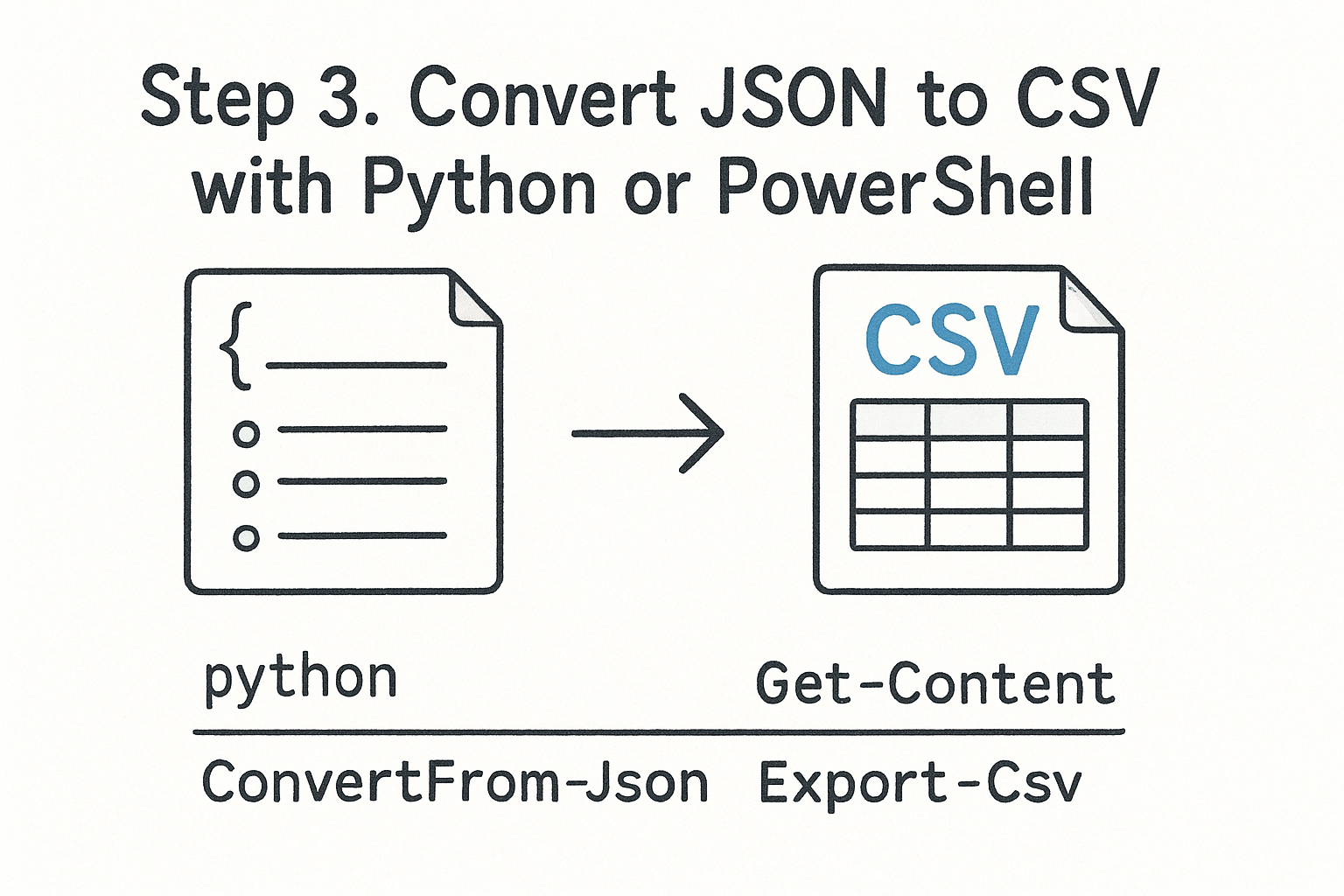
A ten-line script beats a fragile online tool once your data gets messy or repeats every week.
Python: json and csv modules
Python's json and csv modules load your file, then write out a header row from the keys and one row per object. This approach works well for flat or lightly nested data, though you'll need to add a loop for nested arrays.
import json, csv

with open("data.json") as f:
    data = json.load(f)

with open("output.csv", "w", newline="") as f:
    writer = csv.DictWriter(f, fieldnames=data[0].keys())
    writer.writeheader()
    writer.writerows(data)
PowerShell: ConvertFrom-Json and Export-Csv
Windows users can skip Python entirely and run the conversion in one PowerShell command, using cmdlets that ship with the OS by default.
Get-Content data.json | ConvertFrom-Json | Export-Csv -Path output.csv -NoTypeInformation
Both scripts assume an array of objects with a consistent schema. If your keys vary between records, you'll get missing columns instead of errors, so check the output before trusting it fully.
Step 4. Verify and open your CSV file
Once you have a CSV file, don't assume it's correct just because it downloaded without errors. Open the file in Excel, Google Sheets, or a plain text editor and scroll through the first twenty rows to check that columns line up with the fields you expected from your original JSON. A misaligned column usually means a nested array got flattened inconsistently somewhere in the middle of your data.
Watch for a few specific problems that show up often after conversion:
- Encoding issues: special characters like accented letters or emojis turning into garbled symbols
- Delimiter conflicts: commas inside a text field breaking the column structure if quoting wasn't handled correctly
- Truncated numbers: long ID fields losing precision when Excel auto-formats them as scientific notation
- Empty columns: fields that existed in some records but not others, showing up as blank cells you need to account for
A CSV that opens without errors isn't the same as a CSV with correct data, always spot-check a sample of rows.
Quickly sort or filter a column you know should have consistent values, like a status field or a country code. If you spot anything off, go back to Step 1 and check whether your original JSON had a schema inconsistency you missed the first time around.
Putting your CSV data to work
You've got a few solid paths to get from nested JSON to a clean spreadsheet: a Python or PowerShell script for repeatable jobs, or an online converter when you need something fast and don't want to touch code. Whichever route you pick, the same rules apply. Inspect your data first, decide how you'll flatten nested arrays before you convert, and always spot-check the output rather than trusting it blindly.
For most one-off conversions, especially when you're short on time or patience for scripting, a no-code converter just makes sense. That's exactly what JSON Support is built for: paste or upload your file, preview the flattened structure, and download a formatted spreadsheet in seconds, with no signup and no data stored on a server. If your next JSON export needs to become a spreadsheet today, convert your file with JSON Support and skip the script entirely.