Converter CSV to Excel: How to Convert CSV Files Free
July 22, 2026
You've got a CSV file that needs to become an Excel spreadsheet, and you need it done now, not after installing software or creating an account. Maybe it's an export from your database, a report from a client, or data pulled from an API. Whatever the source, a converter csv to excel is the fastest way to get from raw comma-separated text to a formatted .xlsx file you can actually open, sort, and share without fighting with delimiters or broken columns.
The short answer: you don't need Excel's clunky import wizard or a desktop tool. A free online converter lets you upload your file, preview the structure, and download a properly formatted spreadsheet in seconds, no signup, no software, no data sitting on someone else's server after you're done.
This guide walks through exactly how to convert CSV to Excel using a free online tool, what to check before you upload, and how to handle common issues like encoding errors, delimiter mismatches, or oddly formatted dates that can trip up the conversion. By the end, you'll have a clean .xlsx file ready for reporting, analysis, or handing off to a non-technical colleague.
What you need before converting CSV to Excel
Before you touch any tool, gather three things: the CSV file itself, a rough idea of what's inside it, and a browser. That's the entire checklist for a free online converter, since nothing gets installed and no account gets created. If you're converting a one-off export from an API or database, you're already set. If you're handling something larger or messier, a few extra checks up front save you a cleanup step later.
The file and where it came from
Knowing the source of your CSV matters more than people expect. Files exported from MongoDB or Firebase often use UTF-8 encoding and comma delimiters by default, while exports from older systems or European locales sometimes use semicolons or Latin-1 encoding instead. Mismatched delimiters are the number one reason a CSV looks broken once it lands in a spreadsheet.
A CSV that opens cleanly in a text editor will convert cleanly to Excel.
A quick mental checklist
Run through this before uploading anything:
- Open the file in a plain text editor (Notepad, TextEdit) to confirm it's actually comma-separated, not tab or semicolon-separated
- Check the first row for column headers; a header row makes the resulting Excel file far easier to work with
- Look for stray line breaks inside quoted fields, a common issue with exported notes or addresses
- Confirm the file size isn't unreasonably large (a few thousand rows is typical; tens of millions of rows will slow any browser-based tool)
No software, no signup required
Unlike desktop tools, an online converter needs nothing installed on your machine, and you won't create an account or hand over an email address. That's the whole point of a serverless conversion process: your file goes in, your spreadsheet comes out, and nothing sits on a server afterward.
Step 1. Prepare and check your CSV file
Start by opening the raw file, not in Excel, but in a plain text editor. Excel auto-formats things on open, which hides problems you need to catch first. A quick look in Notepad or TextEdit shows you the real delimiter, the real encoding, and whether your header row exists at all.
Fix the delimiter and encoding first
If you spot semicolons instead of commas, that's fine, most converters handle both, but you should know which one you're working with before uploading. Same goes for encoding: files with accented characters, currency symbols, or non-English text need to be UTF-8, otherwise you'll see garbled characters like ’ instead of an apostrophe.
Clean up the structure
Run through this short list before moving to the next step:
- Remove any blank rows at the top or bottom of the file
- Make sure every row has the same number of columns as the header
- Check that quoted fields with commas inside them (addresses, descriptions) are wrapped in quotes correctly
- Save the file with a .csv extension, not .txt
Five minutes of checking now saves a messy re-export later.
Once the file looks clean, you're ready to upload it.
Step 2. Upload or paste your CSV data
Open JSON Support in your browser and you'll see two ways to get your data in: upload the file directly or paste the raw CSV text into the input box. Both paths lead to the same result, so pick whichever fits your situation. If the CSV is sitting on your computer, uploading is quicker. If you copied the data straight from an email, a Slack message, or a terminal output, pasting skips the step of saving a file first.
Uploading a file
Click the upload area, select your .csv file, and let it load. There's no size cap that trips up typical exports, and nothing gets sent to a database or stored after processing.
Pasting raw text
If you're pasting, make sure you copy the entire block, including the header row. Leaving out the header turns your column names into a data row, which throws off the whole structure once it lands in Excel.
The tool works the same whether your data starts as a file or as plain text on your clipboard.
Either way, the converter csv to excel tool immediately reads the structure and moves you to the preview step.
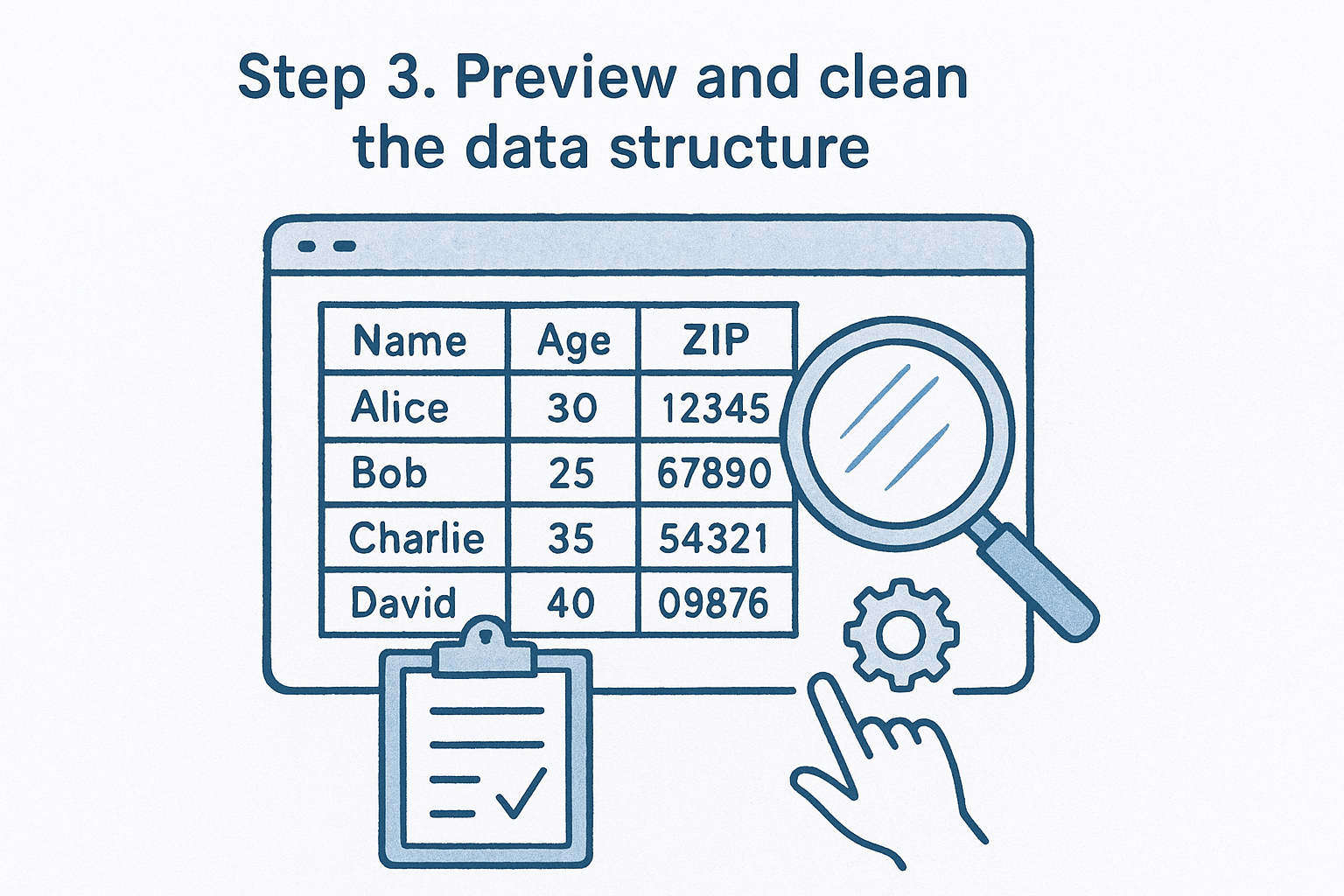
Step 3. Preview and clean the data structure
Once your file loads, JSON Support shows a structure preview before anything gets converted. This is where you catch mistakes that would otherwise turn into a mangled spreadsheet, wrong column count, misread header, or a delimiter the tool guessed incorrectly. Spend the extra thirty seconds here instead of discovering the problem after you've already downloaded the file.
What to look for in the preview
Scan the preview grid for these issues before you hit convert:
- Column headers landing in the wrong row, or missing entirely
- Data shifted one column over, usually a sign of a delimiter mismatch
- Numbers displaying as text (common with leading zeros in ZIP codes or IDs)
- Dates showing in an unexpected format, which can shift once opened in Excel
Catching a structure error in the preview takes seconds; fixing it after download takes an entire re-export.
Fixing what you find
If something looks off, go back to your original CSV, adjust it in a plain text editor, and re-upload rather than trying to fix it inside the preview. It's faster and it guarantees the fix actually sticks. Once the preview looks right, columns aligned, headers in place, values readable, you're ready to generate the actual spreadsheet.
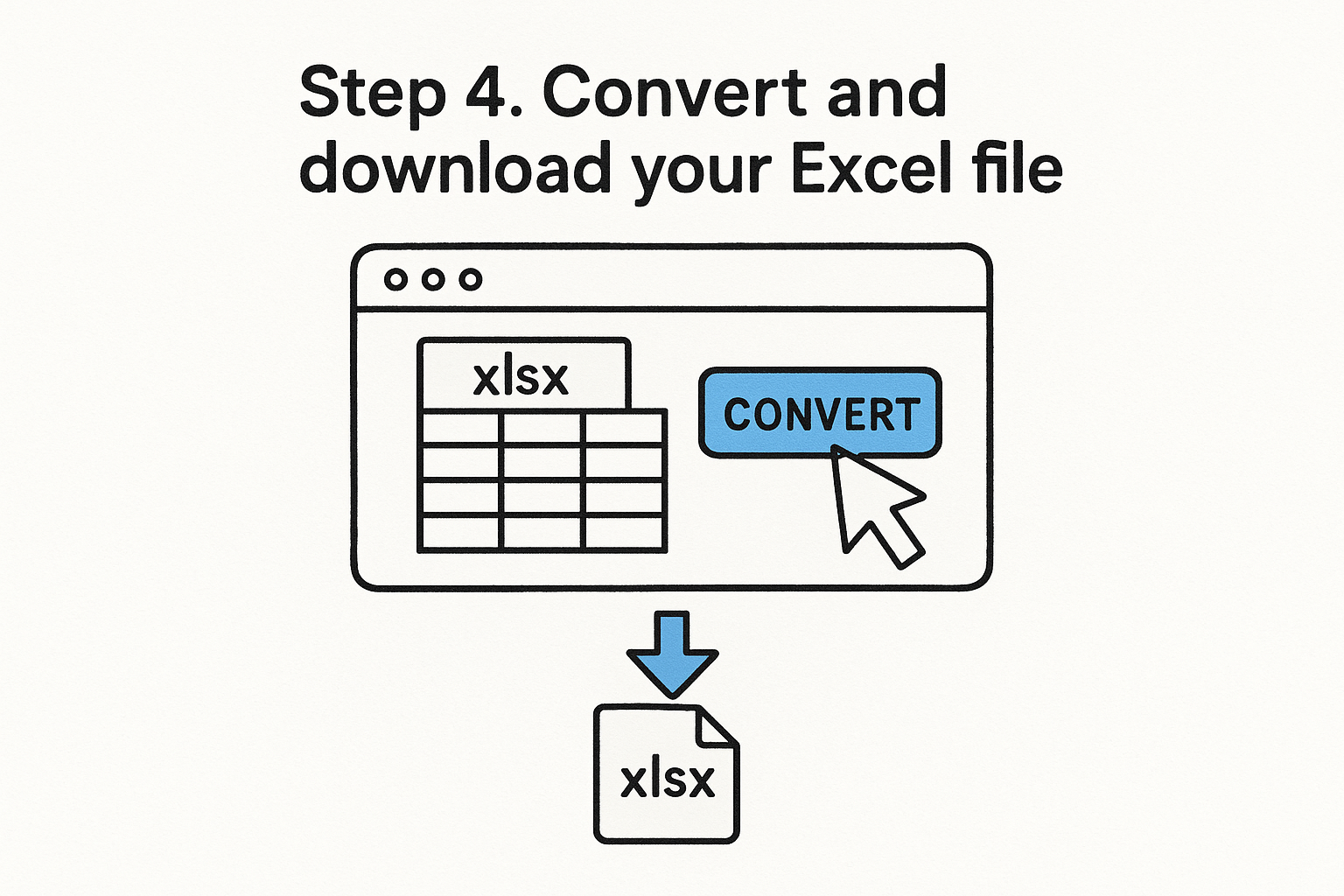
Step 4. Convert and download your Excel file
With the preview looking clean, click the convert button and JSON Support builds your .xlsx file in seconds. There's no progress bar spinning for minutes, no waiting on a server queue. The conversion runs client-side, so a typical file with a few thousand rows finishes almost instantly.
Downloading without the extra steps
Once conversion finishes, your browser prompts a direct file download, no email required, no login screen, no "create an account to continue" popup. The .xlsx file lands in your downloads folder ready to open in Excel, Google Sheets, or any spreadsheet app that reads the format.
A free CSV to Excel conversion should end with a file in your downloads folder, not a signup form.
What to check after opening the file
Before you consider the job done, open the file and run through this quick check:
- Column headers appear in the first row, bold or not
- Numbers and dates display correctly, not as text strings
- Row count matches your original CSV
- No stray blank columns or rows snuck in during conversion
If everything lines up, you're done. If something looks off, head back to the preview step, since the fix usually starts with the source file, not the output.
Your CSV is now ready in Excel
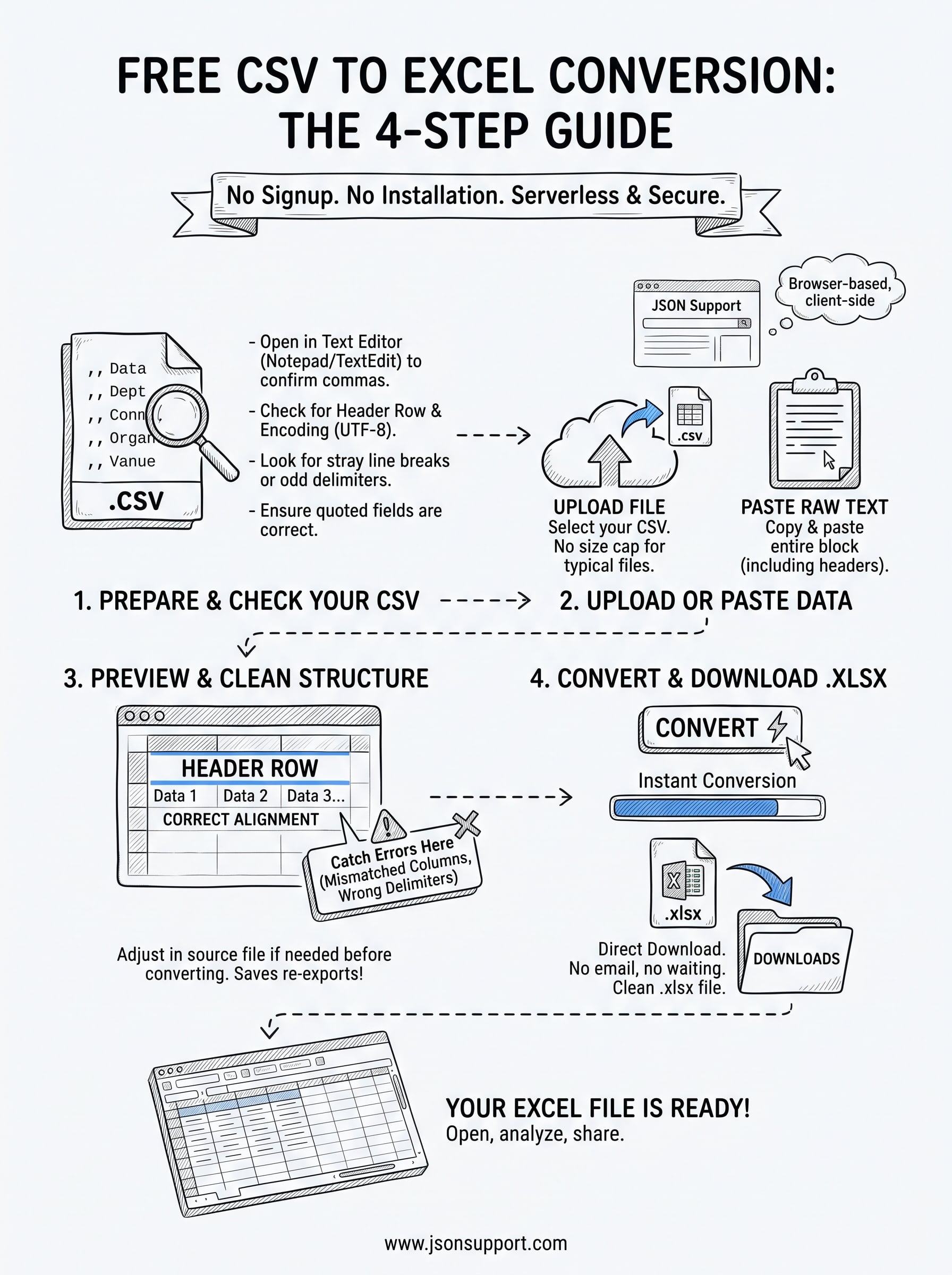
Getting from a raw CSV to a working spreadsheet doesn't need to involve installed software, a signup form, or Excel's import wizard fighting you over delimiters. Check your file, upload or paste it, preview the structure, then download. That's the whole process, and none of it requires more than a browser.
Whatever the source of your data, an API export, a database dump, a client's report, the same four steps apply every time. Skip the cleanup work of manually fixing columns in Excel after the fact, and skip the risk of uploading a file to a tool that stores it somewhere you can't see.
If you've got another CSV waiting, or a JSON file that needs the same treatment, the process is just as fast the second time. Head over to JSON Support and turn your next file into a clean .xlsx spreadsheet in under a minute, no account, no cost, no data left behind.