What Is a CSV File? A Complete Guide to the Format
July 20, 2026
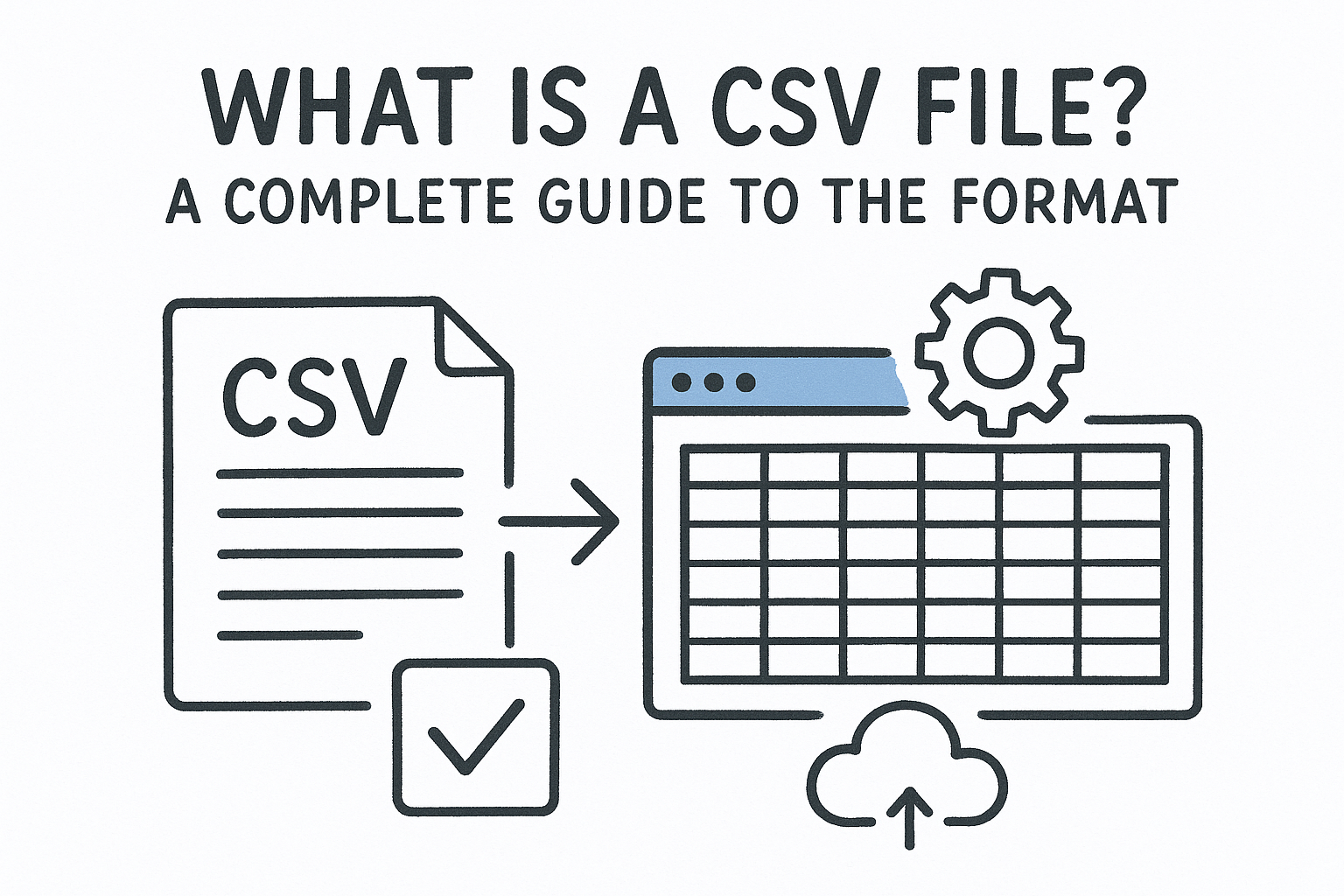
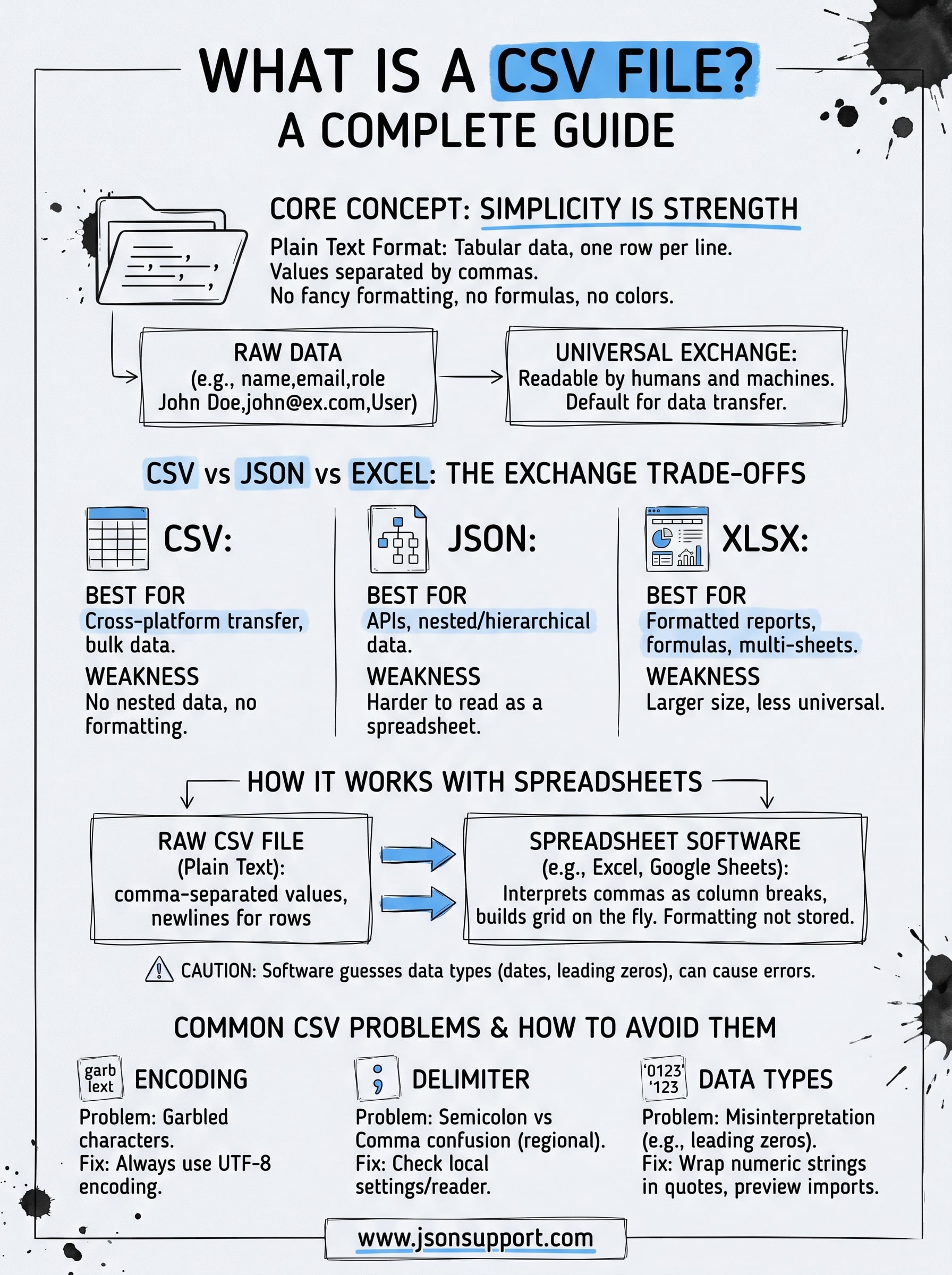
You've opened a file with a .csv extension and found rows of text separated by commas, and you're not sure what you're actually looking at. What is a CSV file, exactly? At its core, it's a plain text format for storing tabular data, one row per line, with values separated by commas. No fancy formatting, no formulas, no colors. Just raw data that almost any program on earth can read.
A CSV file (Comma Separated Values) works because it strips spreadsheets down to their bare essentials: rows and columns of text. That simplicity is exactly why it's become the universal exchange format between databases, APIs, and applications that otherwise have nothing in common. Export data from MongoDB, download a report from an analytics dashboard, or pull results from a SQL query, and you'll likely get a CSV. It's readable by humans and machines alike, which makes it the default choice for data transfer.
In this guide, you'll learn how CSV files are structured, how they differ from JSON and Excel formats, and when converting one into a spreadsheet actually makes your work easier.
Why CSV files still matter for data exchange
Decades after its creation, the CSV format refuses to die, and for good reason. Every major platform still exports to CSV by default: Excel, Google Sheets, Salesforce, Shopify, banking software, and nearly every database management tool you'll ever touch. When someone asks what is a CSV file used for in practice, the honest answer is that it's the lowest common denominator everyone agrees on. You don't need proprietary software to open one, and you don't need to worry about version compatibility between a 2010 spreadsheet program and a 2026 one.
The simplicity that makes CSV universal
Strip away the marketing language, and CSV works because it asks nothing of the systems reading it. A parser only needs to split text on commas and line breaks, nothing more. No binary encoding to decode, no schema to validate against, no version number to check. That's why a Python script, a legacy mainframe, and a modern SaaS dashboard can all read the same CSV file without a single compatibility patch.
A CSV file works because it demands nothing from the software reading it, which is exactly why nothing can replace it.
CSV vs JSON vs Excel: the exchange trade-offs
Compare CSV against the alternatives, and its role becomes clearer. JSON handles nested, hierarchical data far better, which is why APIs favor it. Excel's native .xlsx format supports formatting, formulas, and multiple sheets, which CSV can't touch. But neither format wins on portability. A 50MB JSON file with deeply nested objects can choke a spreadsheet import. An .xlsx file might trigger a "file format not recognized" error in an older system. CSV sidesteps both problems by staying flat and dumb, in the best sense of the word.
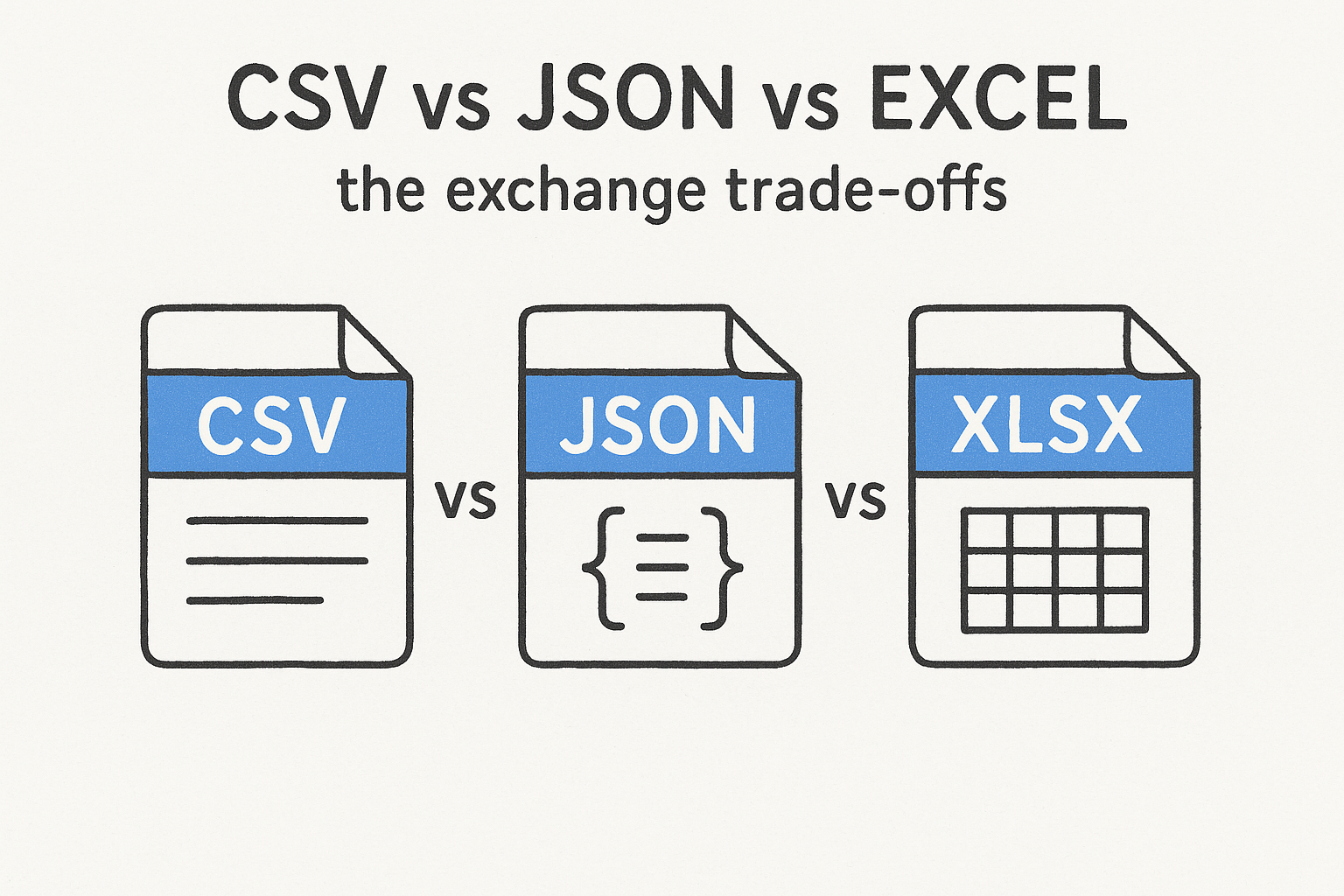
| Format | Best for | Weakness |
|---|---|---|
| CSV | Cross-platform transfer, bulk data dumps | No nested data, no formatting |
| JSON | APIs, nested/hierarchical data | Harder to read as a spreadsheet |
| XLSX | Formatted reports, formulas, multiple sheets | Larger file size, less universal |
Where CSV still dominates today
Examine any data pipeline built in the last ten years, and you'll find CSV lurking somewhere in it. Marketing teams export customer lists as CSV to upload into email platforms. Finance departments pull transaction histories as CSV for reconciliation. Developers dump database query results into CSV before handing them to a non-technical colleague who just wants to open the file in Excel. Government agencies, including the U.S. Census Bureau, publish massive public datasets in CSV specifically because it guarantees accessibility regardless of what software the public happens to own.
Given how often CSV shows up as an intermediate step, from API response, to CSV export, to spreadsheet review, understanding the format isn't optional if you work with data regularly. It's the connective tissue between systems that were never designed to talk to each other directly.
How to create, open, and edit a CSV file
Creating a CSV file takes almost no effort once you know the structure. Open any plain text editor, type values separated by commas, add a line break for each new row, and save the file with a .csv extension. That's it. No special software required for the basic version. You can also build one in Excel or Google Sheets by entering data into cells and choosing "Save As CSV" or "Download as CSV," which handles the comma placement and line breaks for you automatically.
Opening a CSV file the right way
Most operating systems default to opening CSV files in a spreadsheet program like Excel, Numbers, or Google Sheets, which display the data in neat rows and columns. That's usually the best choice for reading the file, since raw text editors show every comma explicitly and get messy fast with large datasets. If you want to inspect the raw structure, though, opening a CSV in Notepad, TextEdit, or VS Code shows you exactly what's stored, comma by comma, with no formatting layer hiding potential errors.
Opening a CSV in a plain text editor first can save you from importing a broken file into your spreadsheet.
Editing without breaking the format
Editing a CSV file is where things go wrong most often. A single misplaced comma inside a text value, without quotation marks around it, shifts every column after it out of alignment. Follow these habits to edit safely:
- Wrap any text field containing a comma in double quotes, like "Smith, John"
- Avoid adding extra commas or line breaks inside a cell
- Save the file in UTF-8 encoding to prevent character corruption
- Check the first few rows after saving to confirm columns still line up
- Use a spreadsheet app rather than a text editor for large files, since it enforces column structure automatically
Follow those five habits and you'll avoid the vast majority of CSV corruption issues before they ever reach someone else's inbox.
How CSV files work with spreadsheets and other software
Spreadsheet programs treat a CSV file as raw material, not a finished product. When you open one in Excel or Google Sheets, the software reads each comma as a column break and each line break as a new row, then builds a grid on the fly. Nothing about the formatting is stored in the file itself, so the moment you close it without saving as .xlsx, all your column widths, colors, and formulas vanish. That's the trade-off: CSV gives you portability, but the spreadsheet program has to rebuild the presentation layer every single time.
Why imports sometimes go wrong
Behind the scenes, spreadsheet software makes guesses about your data, and those guesses aren't always right. A column of numbers formatted like "01-023" might get interpreted as a date or converted to a decimal, stripping the leading zero. Excel's autocorrect behavior is notorious for mangling product codes, phone numbers, and ZIP codes this way. Google Sheets handles this slightly better with its import dialog, letting you set column types before the data loads, but it still trips up on unusual date formats or mixed data types within a single column.
A spreadsheet program guesses at your CSV data types, and those guesses cause more corrupted files than actual formatting errors do.
Beyond spreadsheets: databases and code
Outside of spreadsheet software, CSV files slot into almost any data pipeline without friction. Databases like MySQL and PostgreSQL support direct CSV import and export through commands like LOAD DATA INFILE or COPY, letting you move thousands of rows in seconds. Programming languages treat CSV just as easily. Python's built-in csv module and pandas library both parse CSV files natively, and JavaScript developers can read them with a few lines of code using libraries built for tabular parsing.
import csv
with open("data.csv", newline="") as f:
    reader = csv.reader(f)
    for row in reader:
        print(row)
This flexibility explains why CSV remains the connector format between systems that would otherwise need custom integration work just to exchange a simple list of rows.
Common CSV problems and how to avoid them
Despite its simplicity, a CSV file breaks in predictable ways, and most of those breaks trace back to encoding, delimiters, or data type guessing. Recognizing these failure points before you export or import a file saves you from hours of cleanup later, especially when the file gets passed between teams or countries.
Encoding and special character issues
Garbled characters like ’ instead of an apostrophe usually mean the file was saved in one encoding and opened in another. UTF-8 encoding has become the standard for a reason: it handles accented letters, currency symbols, and non-Latin scripts without corruption. If you're generating CSV files programmatically, always specify UTF-8 explicitly rather than trusting the default, since some older tools still default to Windows-1252 or ISO-8859-1.
Delimiter confusion across regions
Not every country uses a comma the same way. Several European locales use a comma as a decimal separator, so their spreadsheet software exports CSV files with semicolons as the actual delimiter instead. Opening a semicolon-delimited file with a comma-only parser dumps every row into a single column.
A CSV file breaks most often not because the data is wrong, but because the reader and writer disagree on what character separates the columns.
Data type misinterpretation
Spreadsheet programs love to guess, and guesses go wrong with numbers that carry meaning beyond math, like ZIP codes, phone numbers, or SKUs with leading zeros.
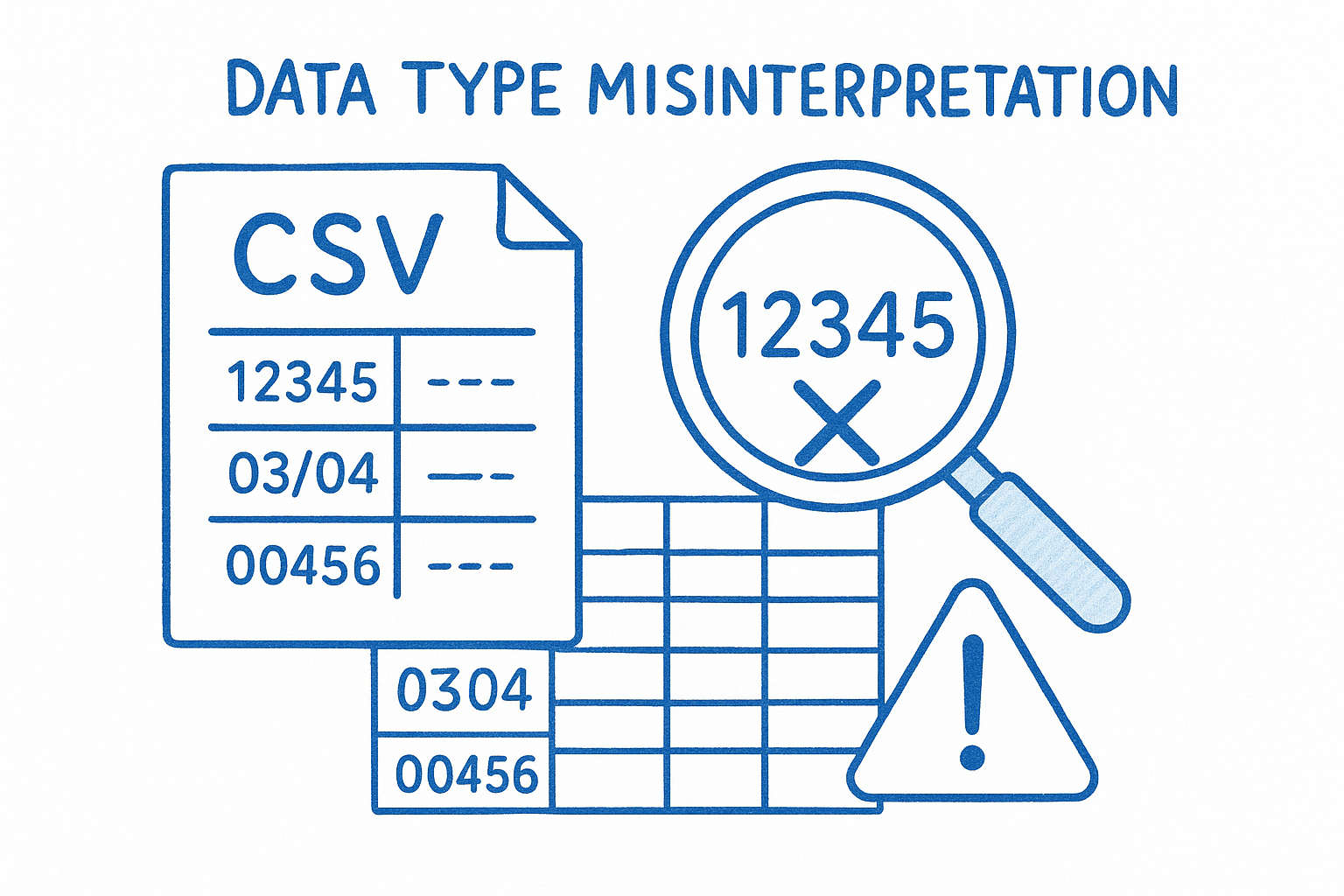
- Wrap numeric strings that must keep leading zeros in quotation marks before import
- Double-check date columns, since "03/04" means different things in the US and UK
- Preview large files before converting them, so type errors surface before the file reaches a client or coworker
- Keep a backup of the raw CSV so you can re-import if a conversion strips data
Following that checklist catches the errors that otherwise slip through silently until someone notices a report full of wrong totals.
Putting CSV files to work
At this point, you know what a CSV file actually is: plain text, rows and columns, no formatting baggage. That simplicity is why it survives as the connector between databases, APIs, and spreadsheets that would otherwise have no common language. You've also seen where it breaks, encoding mismatches, delimiter confusion, and spreadsheet software guessing wrong about your data types, along with the habits that keep those problems from reaching your coworkers or clients.
Most of the time, though, you're not staring at raw CSV for fun. You're trying to turn a JSON export or a CSV dump into something a teammate can actually open and read without complaints. That's the exact gap JSON Support fills. Upload your file, preview the structure, and download a clean .xlsx spreadsheet in seconds, no signup, no data stored. If your next step is converting a file instead of untangling one by hand, try the free JSON to Excel converter and skip the manual cleanup entirely.