Why Your JSON Viewer Download for Windows Matters More Than You Think
July 22, 2026

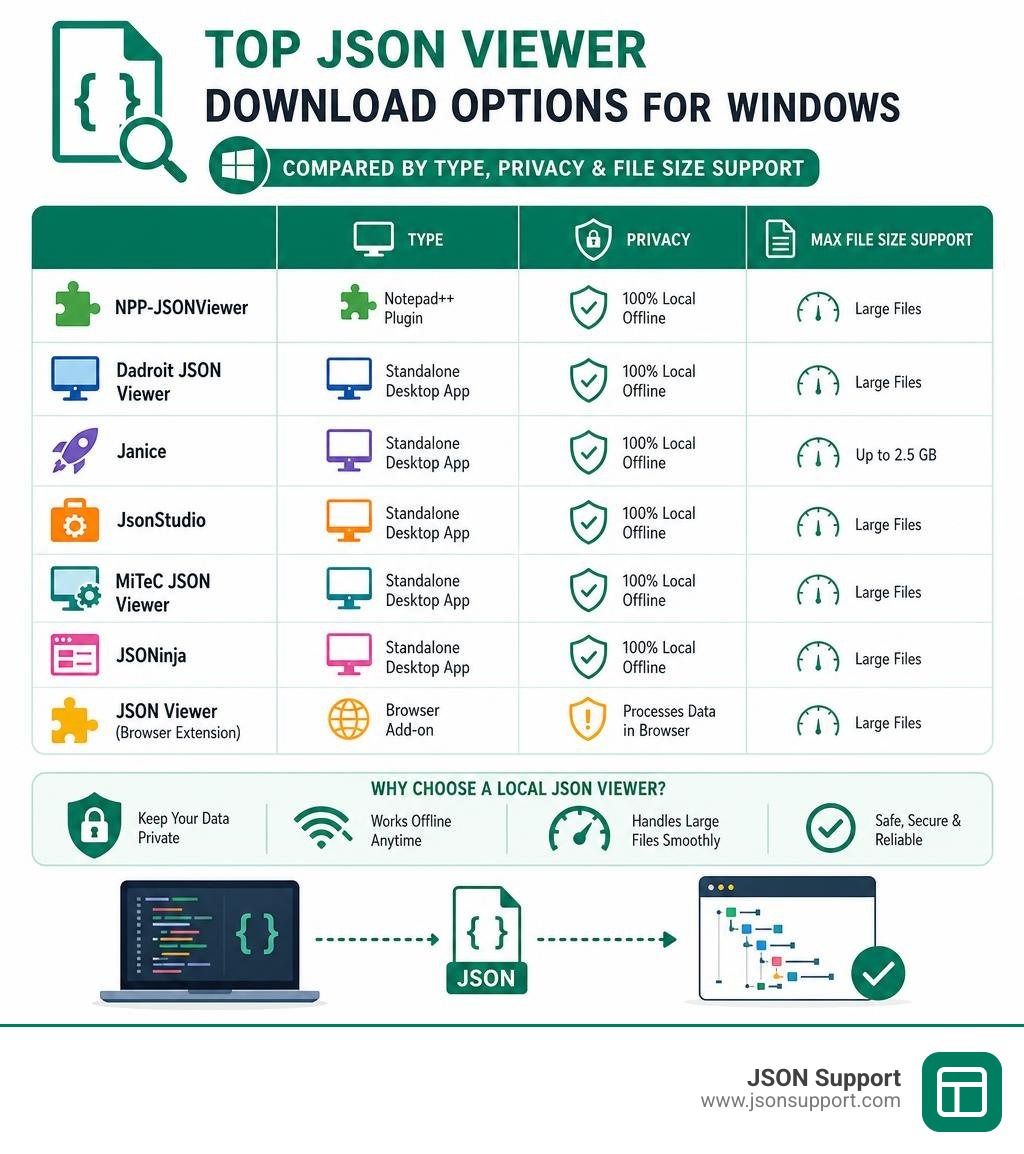
Looking for a safe json viewer download windows? Here are the top options available right now:
| Tool | Type | Free? | Best For |
|---|---|---|---|
| NPP-JSONViewer | Notepad++ plugin | Yes (MIT) | Developers already using Notepad++ |
| Dadroit JSON Viewer | Standalone desktop app | Free (non-commercial) | Large files, clean UI |
| Janice | Standalone desktop app | Yes (open-source) | Very large files (up to 2.5 GB) |
| JsonStudio | Standalone desktop app | Yes (open-source) | Local-first, multi-tool workspace |
| MiTeC JSON Viewer | Standalone desktop app | Free tier available | Windows XP through Windows 11 |
| JSONinja | Standalone desktop app | Yes (open-source) | Multi-tab, heavy customization |
| JSON Viewer (browser extension) | Browser add-on | Yes | Quick in-browser formatting |
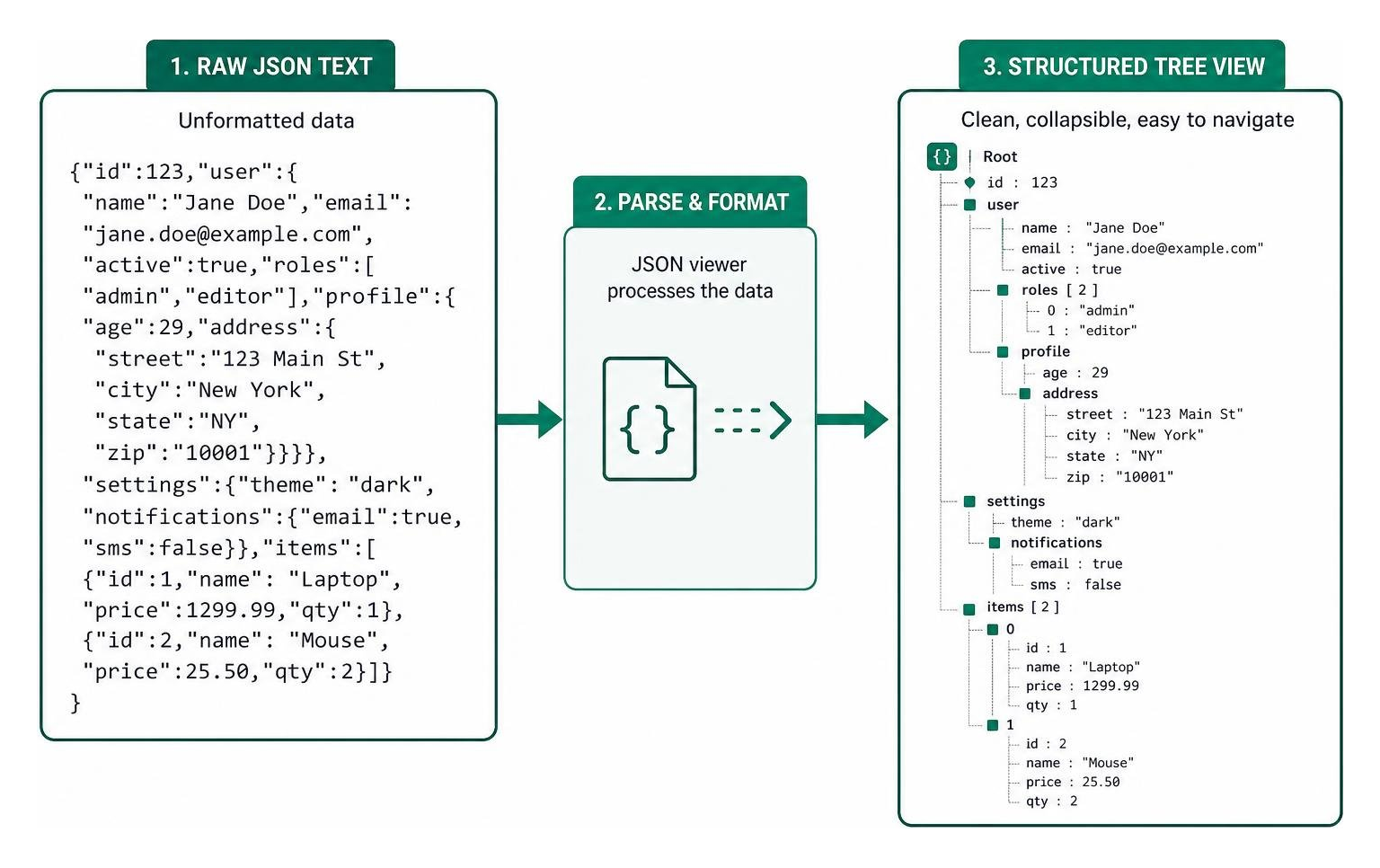
Raw JSON data is hard to read. It looks like a wall of brackets, quotes, and commas — and that makes spotting errors or pulling out specific values genuinely painful.
A good JSON viewer fixes that instantly. It turns that raw text into a clean, collapsible tree view that lets you navigate even deeply nested data in seconds.
But here's the part most people skip over: not every JSON viewer is safe to use with sensitive data. If you're handling API responses, server logs, or any proprietary business data, uploading that to a random online tool is a real risk. Many web-based formatters process your data on their servers — meaning your data leaves your machine entirely.
That's why choosing the right local, offline JSON viewer for Windows matters — both for productivity and for privacy.
This guide covers the safest, most reliable options available in 2026, whether you want a lightweight plugin for Notepad++, a standalone desktop app, or something that can handle files over 100MB without crashing.
Choosing the Best JSON Viewer Download for Windows
When we set out to find the perfect json viewer download windows package, we need to think about what our daily workflow actually looks like. Are we quickly inspecting 2KB API configurations, or are we wading through massive 500MB server log exports?
For those unfamiliar with the core structure of this data format, checking out What is JSON? A Beginner's Guide to the Data Format can provide a solid foundation.
At its core, a solid Windows JSON viewer should solve three main problems: readability, navigation, and security. Opening a raw JSON file in standard Notepad is a recipe for a headache. We want a tool that instantly parses the raw text and organizes it into an interactive tree.
To help you narrow down your choices, here is a detailed breakdown of what to look for when choosing your tool:
| Feature | Standalone Desktop App | Notepad++ Plugin | Browser Extension |
|---|---|---|---|
| Data Privacy | 100% Local (Safe) | 100% Local (Safe) | Local, but requires browser file permissions |
| Large File Support | Excellent (Up to 2.5 GB) | Moderate (Prone to lag on 50MB+) | Poor (Will crash on large files) |
| System Footprint | Varies (Lightweight to Heavy Electron) | Extremely Lightweight | Medium |
| Installation Required | Yes (or Portable EXE) | Yes (DLL copy) | Yes (via Browser Store) |
| Specialized Features | JSON Diff, Schema Validation | Text Editor integration | Auto-detects web API calls |
Key Features of a Modern JSON Viewer
A bare-minimum viewer will prettify your text, but a modern developer workspace needs to do much more. When downloading a utility for Windows 10 or 11, look for these key capabilities:
- Interactive Tree View & Search: The ability to collapse and expand nested objects, search for specific keys or values, and copy the exact JSON path (e.g.,
store.book[0].author) to your clipboard. - Syntax Validation & Error Highlighting: If a comma is missing on line 4,500, the viewer should highlight the exact line and give you a clear error message instead of failing silently.
- JSON Diff: A side-by-side comparison tool that highlights exactly what changed between two different JSON payloads.
- Format Conversion: The ability to transform your structured data into other formats. For instance, if you need to flatten your data for a spreadsheet, you can learn How to Convert JSON to CSV to make sharing data with non-technical team members effortless.
Standalone Desktop Apps vs. Browser Extensions for a JSON Viewer Download Windows
Many developers ask us whether they should download a standalone Windows desktop app or simply install a browser extension.
Browser extensions, such as the popular options available on JSON Viewer for Windows download | SourceForge.net , are incredibly convenient. They automatically format raw JSON when you visit an API endpoint in Chrome, Edge, or Firefox. However, they operate within the browser sandbox. To view local files, you have to manually grant the extension permission to access local file URLs (file://), which can sometimes feel like a security compromise.
Standalone desktop applications, on the other hand, run completely offline. They don't send telemetry or data packets back to a remote server. They also have direct access to your system's hardware resources, meaning they can process massive datasets that would easily crash a web browser tab.
Top Safe and Lightweight JSON Viewers for Windows
If you have decided that a local desktop utility is the safest bet for your workflow, you are in luck. There are several highly optimized, lightweight, and open-source options available for Windows. Many of these are licensed under the permissive MIT license, ensuring they are free for both personal and commercial use without hidden subscriptions.
NPP-JSONViewer: The Notepad++ Plugin
For those of us who already use Notepad++ as our default text editor on Windows, the NPP-JSONViewer/JSON-Viewer plugin is an absolute must-have.
This plugin transforms Notepad++ from a simple text editor into a powerful offline JSON IDE. It is powered by the ultra-fast RapidJSON parsing library written in C++, making it incredibly responsive.
- The Stats: With 865 stars and 166 forks on GitHub, this plugin has had 23 releases. The latest v2.2.0.0 release came out on May 30, 2026, introducing crucial memory leak fixes, parser performance improvements, and robust support for ARM64 Windows devices.
- The Best Part: It supports relaxed JSON parsing. This means it won't throw a fit if your file has comments, trailing commas, or JavaScript literals like
NaNorInfinity— things that standard, strict JSON parsers usually reject.
Janice: High-Performance Viewer for Massive Files
If you regularly work with massive data dumps, standard text editors will freeze up. That is where Janice comes in. Janice is a high-performance, cross-platform desktop application designed specifically for viewing massive JSON files locally.
- The Power: Built using the Go programming language, Janice can load JSON files containing up to 45 million elements and approximately 2.5 GB in size on a machine with just 8 GB of RAM.
- How it Works: It uses memory-mapped I/O to read files directly from your storage drive without loading the entire payload into your system memory all at once. It automatically renders your document as an alphabetically sorted, collapsible tree structure.
JsonStudio: Local-First Developer Workspace
JsonStudio is a native desktop app designed to be a complete workspace for your JSON data. Built on the modern Tauri 2.0 framework with Rust and Svelte 5, it is exceptionally lightweight and fast.
- Smart Formatting: JsonStudio handles messy or escaped JSON strings, supports JSON5, and can automatically attempt to repair problematic or malformed JSON data.
- Mixed Log Extraction: If you have a messy plain-text log file that contains random JSON fragments scattered throughout, JsonStudio can automatically scan the file, extract the JSON payloads, and format them without altering your original log file.
- Visual Editing: It features a hybrid Tree View (where you can drag and drop nodes to visually reorganize your data structure) and a Grid View that lets you edit large arrays in a spreadsheet-like layout.
Lens JSON Viewer and JSONinja
If you prefer a highly visual, modern user interface, both Lens JSON Viewer and JSONinja are excellent choices built on the Electron framework.
The gracece/lens-json-viewer desktop application is excellent for working with structured log data. It features stream-based parsing for JSON Lines (JSONL) via ndjson with paginated loading. If you are unfamiliar with this format, you can read our guide on What is NDJSON?. Lens also includes a built-in Table Extractor, allowing you to define custom field paths using dot notation and export structured arrays directly to CSV.
Meanwhile, KrunchMuffin/JSONinja is an advanced viewer that focuses heavily on visual customization. It offers multi-tab support, five different coding fonts, four built-in themes, and an 8-color cycling "rainbow bracket" system that makes nested structures incredibly easy to track. It can comfortably handle files with over a million lines of code (roughly 10-20MB).
How to Install and Configure Your Windows JSON Viewer
Now that you have selected the right tool for your needs, let's walk through how to safely download, install, and configure your new JSON viewer on Windows 10 or 11.
How to Safely Run a JSON Viewer Download Windows Tool
When downloading open-source developer tools for Windows, you might occasionally run into security warnings. This is particularly common with high-performance tools built in Go (like Janice).
Because Go compiles programs directly into standalone executables without standard Windows installer packaging, Windows Defender SmartScreen sometimes flags them as unrecognized or even labels them with a false-positive Trojan warning.
To run these safely:
- Always download the executable directly from the official GitHub Releases page or verified source.
- Right-click the downloaded
.zipor.exefile and select Properties. - If there is an "Unblock" checkbox at the bottom of the General tab (because the file came from another computer), check it and click Apply.
- If Windows Defender flags a trusted, open-source tool, you can add an exclusion for that specific folder or executable in your Windows Security settings.
Installing the Notepad++ JSON Viewer Plugin
Installing the Notepad++ plugin is incredibly straightforward and doesn't require running a heavy installer:
- Download the latest
NPPJSONViewer.dllfile from the official NPP-JSONViewer/JSON-Viewer repository. Make sure to download the version matching your Notepad++ installation architecture (x64, x86, or ARM64). - Open Windows Explorer and navigate to your Notepad++ installation directory (usually
C:\Program Files\Notepad++\plugins). - Create a new folder inside named exactly
NPPJSONViewer. - Paste the downloaded
NPPJSONViewer.dllfile into that new folder. - Restart Notepad++.
- Open any JSON file, select the text, and use the default keyboard shortcut
Ctrl + Alt + Shift + Jto open the interactive tree viewer.
Frequently Asked Questions About Windows JSON Viewers
Can these viewers handle very large JSON files over 100MB?
Yes, but it depends heavily on the tool's architecture. Standard Electron-based viewers (like JSONinja or Lens) load the entire file into memory and render it using web technologies, which will usually cause the application to lag or crash on files larger than 50MB.
If you need to open files over 100MB, we highly recommend using Janice or a native tool utilizing memory-mapped I/O and fast C++ parsers like simdjson. These tools use virtual pagination, meaning they only render the visible portion of the data tree, keeping memory usage exceptionally low even when browsing gigabyte-scale datasets.
Are there open-source or MIT-licensed JSON viewers for Windows?
Absolutely! Open-source tools are the preferred choice for developers because the source code is entirely transparent, ensuring that no hidden tracking scripts or data-mining tools are running in the background.
Aside from NPP-JSONViewer, Janice, and JsonStudio, you can also look into GitHub - ccseer/JsonTreeViewer: A plugin for Seer Pro · GitHub . This is a professional-grade, high-performance tree viewer built with C++ and Qt 6, powered by simdjson 4.6.3. It integrates directly with Seer, a popular quick-look file preview utility for Windows, allowing you to preview JSON files instantly by simply pressing the Spacebar in Windows Explorer.
How do I open a JSON file with a viewer via file association?
To make your downloaded viewer the default tool for all JSON files on Windows:
- Right-click any
.jsonfile in Windows Explorer. - Select Open with > Choose another app.
- Select your downloaded JSON viewer from the list (or click "More apps" / "Look for another app on this PC" to browse to your portable
.exefile). - Check the box that says Always use this app to open .json files.
- Click OK. Now, double-clicking any JSON file will open it instantly in your preferred local viewer.
Conclusion
When dealing with structured data, protecting your privacy and keeping your workflow fast are two sides of the same coin. Downloading a local, offline JSON viewer for Windows 10 or 11 ensures that your proprietary database exports, API credentials, and client records never leave your local machine.
However, we all know that viewing and formatting data is only half the battle. At some point, you will need to share your findings with project managers, marketing teams, or business clients who don't want to look at a technical tree view. They want a clean, organized spreadsheet.
If you need to convert your JSON data to Excel, check out our How to Convert JSON to Excel: A 2026 Guide.
When you are ready to make that leap, we at JSON Support offer a completely free, browser-based JSON-to-Excel conversion tool. Because our tool operates in a completely data-less, serverless environment, your data is processed entirely inside your own browser window. This ensures fast, secure, and registration-free conversions without any of your sensitive information ever being uploaded or stored on our servers. It is the perfect bridge between secure local development and seamless business collaboration!