How to Import JSON Into Google Sheets: Your Quick Answer
July 22, 2026
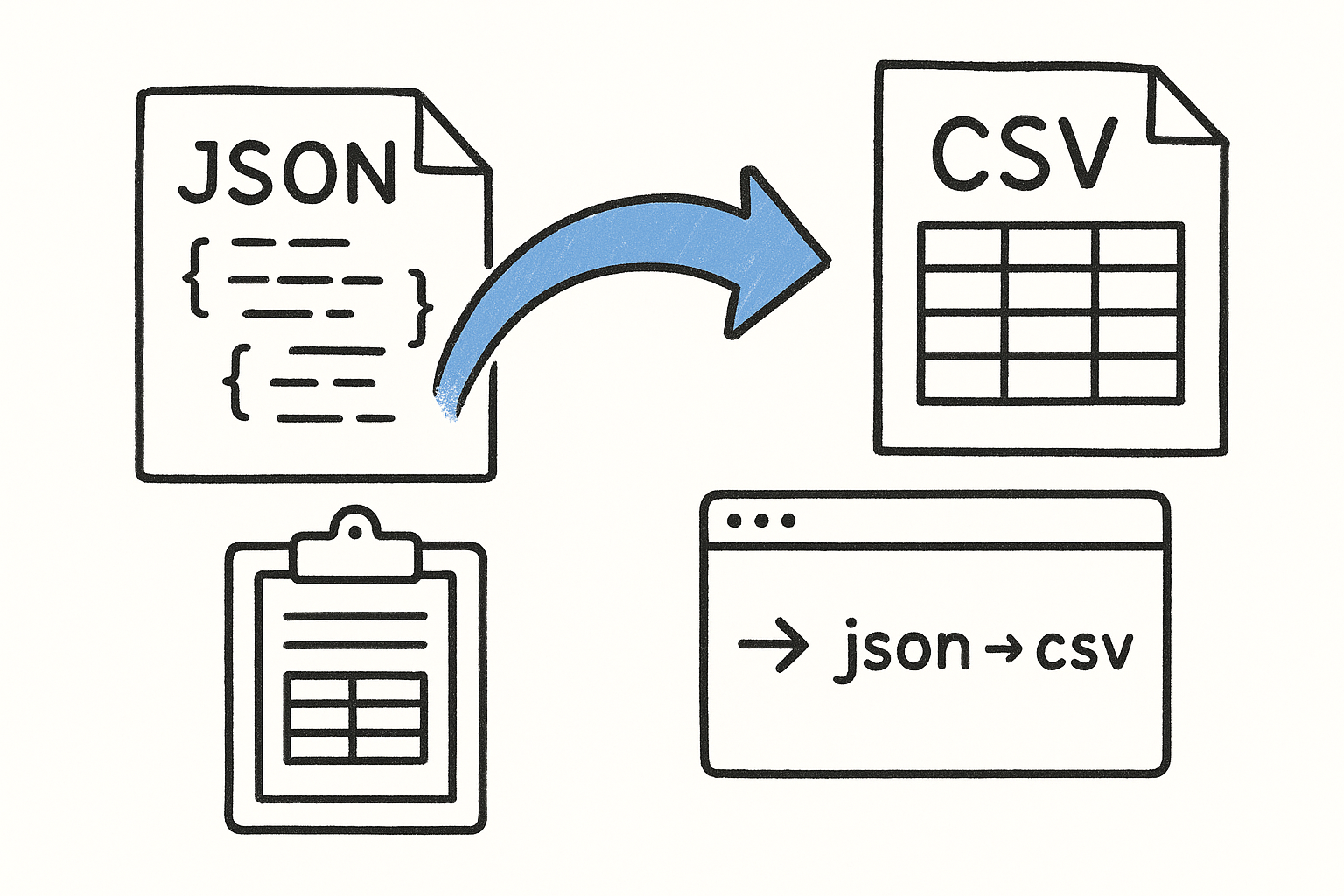
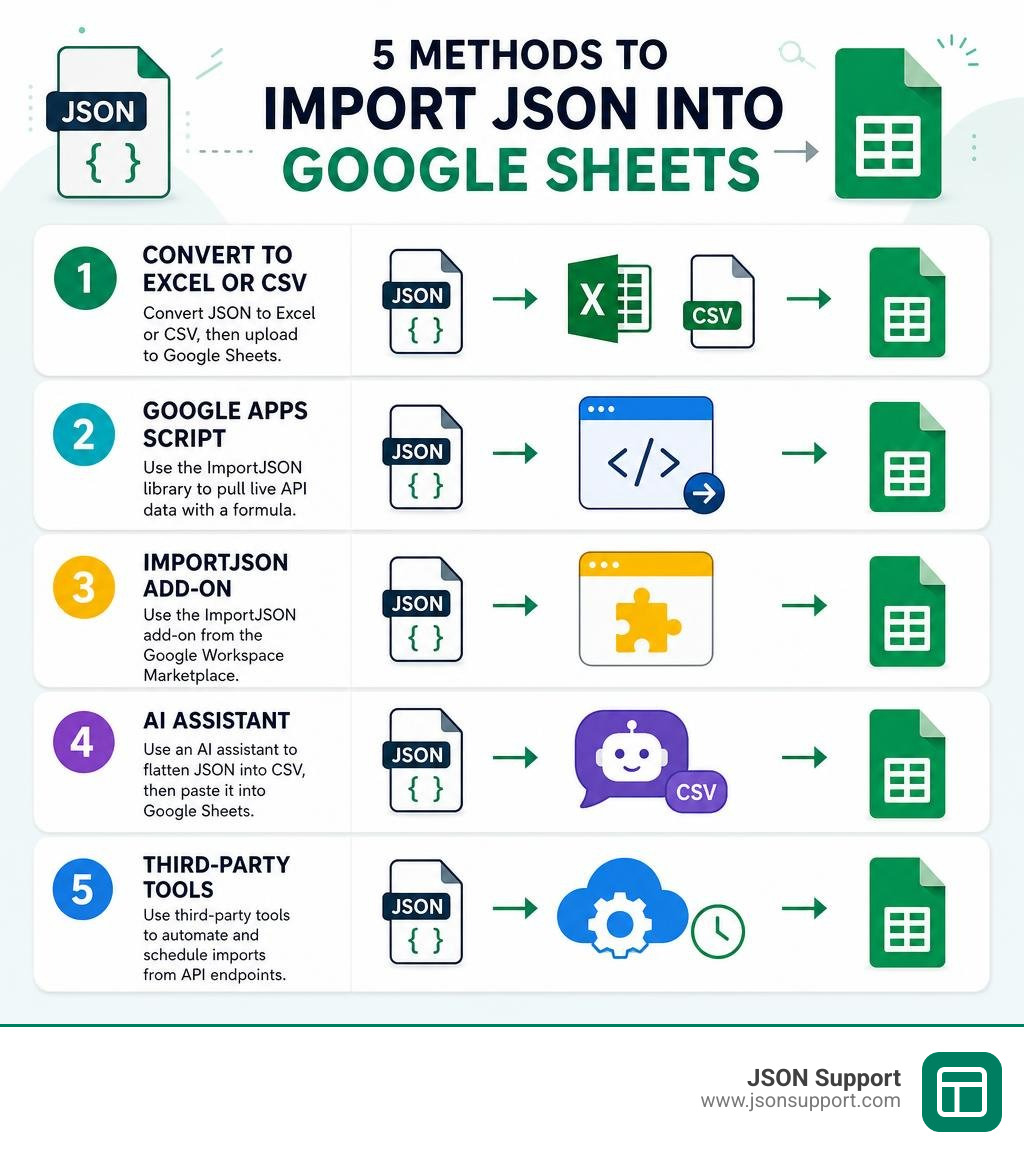
Importing JSON into Google Sheets is not as simple as dragging and dropping a file. Google Sheets does not natively open or read JSON files. But there are several reliable methods to get it done:
- Convert JSON to Excel or CSV first, then upload the file to Google Sheets (fastest for one-time imports, no coding required)
- Use the ImportJSON Google Apps Script library to pull live API data directly into your sheet using a formula
- Use the ImportJSON add-on from the Google Workspace Marketplace (no-code, over 226,000 installs)
- Use an AI assistant like ChatGPT to flatten JSON into CSV format, then paste it into your sheet
- Use a third-party integration tool for automated, scheduled imports from API endpoints
Fastest route: paste your JSON into our free JSON to Google Sheets converter, copy the result, and paste it into cell A1. It also has a ready-to-use IMPORTJSON script for keeping a sheet live from an API URL.
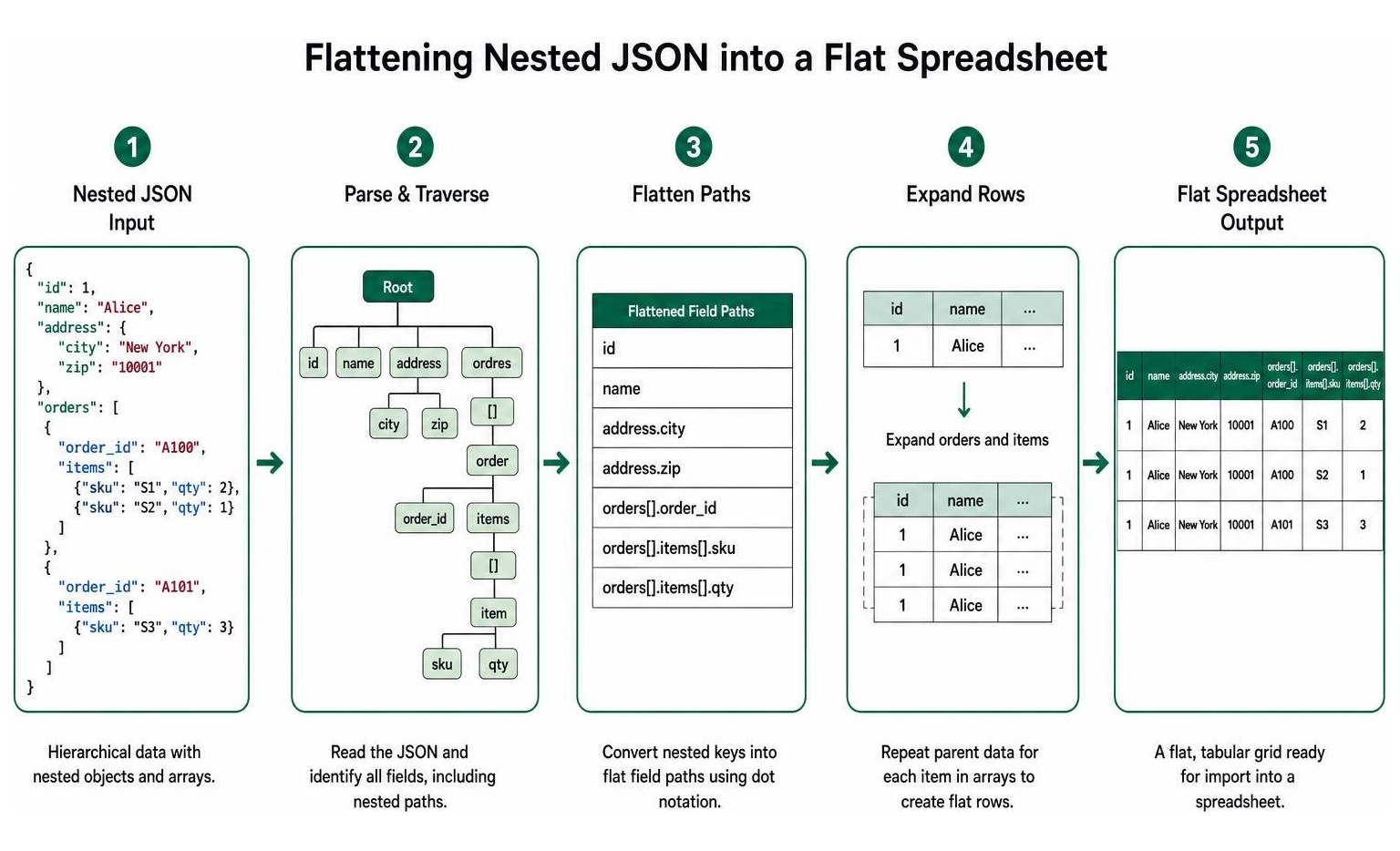
The core problem is a structural mismatch. JSON is hierarchical — it uses nested objects, arrays, and key-value pairs. Google Sheets is a flat grid of rows and columns. Getting one into the other requires flattening that hierarchy, and that step trips up a lot of people.
If you have ever tried to pull data from an API or open a .json file in Google Sheets only to be met with a blank screen, a 403 Forbidden error, or an Unexpected end of JSON input message — you are not doing anything wrong. The tools simply were not built to talk to each other directly.
This guide walks through every practical method, from the simplest no-code conversion to full script-based automation, so you can pick what works for your situation.
Why is it Hard to Import JSON to Google Sheets?
To understand why we cannot simply click "File > Open" on a JSON file in Google Sheets, we need to look at how these two formats organize data.
Google Sheets relies on a strict, two-dimensional grid. It is built for tabular data, meaning every piece of information belongs to a specific row and a specific column. If you want to learn more about how flat files work, you can read our guide on What is a CSV File.
JSON (JavaScript Object Notation), on the other hand, is a hierarchical format. It is designed to represent complex, nested relationships. It uses key-value pairs, nested objects, and arrays. To understand the fundamentals of this format, check out What is JSON? A Beginner's Guide to the Data Format.
Think of JSON like a set of Russian nesting dolls or a complex family tree. A single user record might contain another object for "address" (which contains "city" and "zip"), and an array of "orders" (where each order has its own list of items). Google Sheets is like a flat census form. It does not have branches; it only has rows.
To bridge this gap, we must perform a process called data flattening. Flattening takes those nested elements and forces them into a flat grid by combining keys or repeating parent data.
Here is a quick comparison of how JSON, CSV, and Excel structures differ:
| Feature | JSON | CSV | Excel (XLSX) |
|---|---|---|---|
| Structure | Hierarchical / Nested | Flat / Tabular | Flat / Multi-tab Tabular |
| Data Types | Supports strings, numbers, booleans, arrays, objects | Strings only (no built-in types) | Supports numbers, dates, formulas, strings |
| Human Readability | Hard for non-technical users | Easy for simple lists | Excellent for reporting and analysis |
| Primary Use Case | Web APIs, configuration files | Bulk data transfers | Business analysis, charts, formatting |
Without a tool or script to translate the hierarchy of JSON into the rows and columns of Google Sheets, the spreadsheet simply does not know where to put the nested data.
Method 1: Convert JSON to Excel or CSV First (The Safest Way)
For many people, the goal is simply to get a one-off JSON file into a spreadsheet so they can analyze it, build a chart, or share it with a colleague. If you do not need a live, real-time sync with an external API, the absolute safest and easiest route is to convert your JSON file into an Excel or CSV file before importing it.
Why is this the safest way? When you use custom scripts or third-party add-ons inside Google Sheets, your data is processed through external servers or third-party code. If you are handling sensitive user data, financial metrics, or proprietary business logs, pasting that data into unverified online tools or running unmaintained scripts poses a real security risk.
By using a secure, client-side converter, you bypass these security headaches entirely. We designed the JSON Support converter to process everything locally in your web browser using JavaScript. No data is ever sent to our servers, stored, or shared.
Here is how you can use this method to import json to google sheets:
- Open your web browser and navigate to our free tool at https://www.jsonsupport.com/.
- Drag and drop your
.jsonfile into the upload area, or paste your raw JSON text directly into the editor. - Our tool automatically parses and flattens the nested structures using smart dot notation (for example,
user.profile.namebecomes a clean column header). - Click Convert to Excel to instantly download a professionally formatted
.xlsxfile. - Open Google Drive, drag your new Excel file into your drive, and double-click to open it directly in Google Sheets.
This method takes less than two minutes, requires zero coding knowledge, and ensures your data remains 100% private. To learn more about this workflow, see our comprehensive guide on How to Convert JSON to Excel: A 2026 Guide. If you prefer working with text-based formats, you can also read How to Convert JSON to CSV for Better Data Analysis or review our comparison Converting JSON to Excel vs CSV: Which Should You Use.

Using AI Assistants for Quick Manual Conversions
If you are working with a small, simple JSON snippet and want to convert it quickly without leaving your workflow, you can leverage generative AI tools like ChatGPT or Claude.
AI models are surprisingly good at acting as ad-hoc compilers. They can easily understand nested JSON structures and rewrite them into flat CSV text.
To use this method, you can write a prompt like this:
Please convert the following JSON data into a flat CSV format. Make sure to flatten any nested objects using dot notation for the headers, and escape any commas or quotes in the values so the columns align correctly:
[Your JSON Data Here]
The AI will output a clean CSV block. You can then copy that output, open Google Sheets, select cell A1, and paste it. If Google Sheets does not automatically split the pasted text into columns, simply click the small clipboard icon that appears next to your pasted data and select Split text to columns.
While this AI assistant method is incredibly convenient for small tasks, it has major limitations:
- Character Limits: Generative AI tools have token and character limits. If you try to paste a large JSON file with thousands of rows, the AI will truncate the data or crash.
- Lack of Automation: You have to manually copy, paste, and prompt the AI every time your data changes, making it highly inefficient for recurring reports.
- Data Leakage Risks: Unless you are using an enterprise AI account with strict privacy controls, pasting sensitive business data into public AI models can expose your information.
For larger projects, you are much better off using dedicated local conversion systems. You can read more about managing these setups in our guide on How to Use a CSV to JSON Converter for Data Projects.
Method 2: How to Import JSON to Google Sheets Using Google Apps Script
If you need to connect to a live API endpoint and pull real-time data into your spreadsheet automatically, you will need to extend Google Sheets' capabilities. Because native formulas like IMPORTDATA and IMPORTHTML only support formats like CSV, TSV, and HTML, we must use Google Apps Script to build a custom JSON parser.
Google Apps Script is a JavaScript-based cloud scripting platform that allows you to automate tasks and build custom spreadsheet formulas. By using the UrlFetchApp service, Apps Script can make external HTTP requests to fetch JSON data from APIs, parse the response, and write it directly to your sheet.
Instead of writing a custom script from scratch, the developer community has created highly optimized, open-source libraries. The most famous and widely used script is the classic ImportJSON.gs library.
To get started, you can find the open-source code on GitHub at ImportJSON.gs or check out alternative versions like importJSON - Pastebin.com.
Setting Up the Custom Import JSON to Google Sheets Script
Installing this script in your spreadsheet is a straightforward process that takes less than five minutes:
- Open the Google Sheet where you want to import json to google sheets.
- In the top menu, click on Extensions and select Apps Script.
- If there is any placeholder code in the editor (such as a default
myFunctionblock), delete it completely. - Copy the entire raw code from the ImportJSON.gs at master · token-terminal/ImportJSON repository.
- Paste the copied code into the Apps Script editor window.
- Click the Save icon (the small floppy disk) at the top of the editor, or press
Ctrl + S(Cmd + Son Mac). - You can rename the script project to something like "JSON Importer" to keep things organized.
- Close the Apps Script tab and return to your spreadsheet.
Now, you have registered a custom formula called =ImportJSON(). You can use it in any cell just like a native Google Sheets formula.
For example, to fetch a public list of country metadata, you can type this formula into cell A1:
=ImportJSON("https://restcountries.com/v3.1/all")
Press Enter, and the script will fetch the JSON data, flatten it into rows and columns, and populate your sheet automatically.
Advanced Options for the Import JSON to Google Sheets Formula
The ImportJSON.gs library is highly customizable. It includes several parameters and alternative helper functions to handle complex API requirements. The standard syntax for the formula is:
=ImportJSON(url, query, parseOptions)
Here is how you can use these parameters to fine-tune your data import:
- The Query Parameter: If you only want to import specific fields from a large JSON payload, you can pass a path query. For example, using
/feed/entry/titlewill only pull the titles out of a nested feed, ignoring everything else. noTruncate: By default, the script truncates cell values longer than 256 characters to keep the spreadsheet readable. If you are importing long descriptions or text blocks, passnoTruncatein the options parameter to preserve the full text.noInherit: When flattening nested arrays, the script normally copies parent values down to child rows to maintain context. If you want to keep child rows clean and avoid duplicate parent data, usenoInherit.rawHeaders: The script automatically "prettifies" column headers by converting slashes to spaces and applying Title Case. If you need the exact JSON keys for downstream formulas or scripts, passrawHeadersto preserve the original keys.allHeaders: If some objects in your JSON array are missing certain keys, the spreadsheet columns can become misaligned. PassingallHeadersscans the entire dataset first to build a master header list, ensuring every column stays perfectly aligned.
If your target API requires authentication or specific request methods, the library provides advanced helper functions. For example, if you need to fetch data using a secure POST request with a custom payload, you can use ImportJSONViaPost. If the API uses HTTP Basic Authentication, you can use ImportJSONBasicAuth to pass your credentials safely.
For more advanced examples and community forks of these functions, you can refer to Google Sheets ImportJSON.
Troubleshooting Common Google Sheets JSON Import Errors
Connecting spreadsheets directly to web APIs can be a fragile process. Because Google Sheets operates on Google's cloud servers, your requests do not come from your personal computer — they come from Google's data centers. This can lead to unexpected roadblocks.

Here are the most common errors you will encounter and how to fix them:
1. The 403 Forbidden Error
This is the most common error when fetching data from public websites. A 403 Forbidden error means the target server is actively blocking your request.
Because Google Apps Script's UrlFetchApp carries a hardcoded Google User-Agent header and originates from known Google IP addresses, web application firewalls (like Cloudflare) easily identify these requests as automated bots. Many websites block Google's IP addresses to prevent aggressive web scraping and protect their servers from extra traffic costs.
The Fix: If the website offers an official, developer-friendly API, use that endpoint instead of trying to scrape a user-facing page. Official APIs usually require an API key or Token Authentication, which bypasses basic bot protection. If there is no official API, you will need to convert the JSON data locally using our browser-based converter and upload it manually.
2. Unexpected end of JSON input
This error occurs when the script tries to parse a response that it expects to be JSON, but the data is either incomplete, corrupted, or not actually JSON at all.
The Fix: Frequently, when a server blocks Google's IP address, it returns a standard HTML error page (like a Cloudflare challenge page) instead of the JSON data you requested. When the script tries to parse this HTML code as JSON, it fails and throws this error.
To troubleshoot, copy your API URL and paste it into a browser tab, or inspect the network response. If the page loads fine in your browser but fails in Google Sheets, the website is blocking Google's servers.
3. API Rate Limits and Daily Quotas
Google Apps Script has strict daily quotas for external fetch requests (typically 20,000 requests per day for standard accounts). Additionally, the external APIs you connect to often have rate limits (e.g., a maximum of 100 requests per hour).
If your spreadsheet contains dozens of =ImportJSON() formulas, every single edit to your sheet can trigger a recalculation, quickly exhausting your quotas and locking you out.
The Fix: Use smart caching. The ImportJSON script includes built-in caching mechanisms to prevent redundant API calls. Alternatively, once you pull the data you need, you can copy the cells and select Paste special > Values only to turn the dynamic formula into static data, stopping the constant API requests.
For a deeper dive into managing API connections and spreadsheet limitations, check out API to Excel: A Practical Guide for Data Analysts.
Frequently Asked Questions about Importing JSON to Google Sheets
To help you get your import running smoothly, we have compiled answers to some of the most common questions from our users. For more general questions about data structures, you can visit our FAQ page.
Why does my JSON import return a 403 Forbidden error?
As explained in our troubleshooting section, a 403 Forbidden error occurs because the target website’s security system (such as Cloudflare or Akamai) is blocking the request.
Google Apps Script runs on Google's cloud servers, meaning all requests carry a distinct Google User-Agent header and come from Google IP addresses. Websites block these automated requests to prevent scraping and save server bandwidth.
To bypass this, check if the website offers an official API that supports API keys or Bearer tokens. Passing proper authentication headers often allows your request to go through securely.
How do I handle nested JSON arrays and objects in Google Sheets?
To fit nested structures into a two-dimensional grid, the data must be flattened. There are two primary ways to handle this:
- Dot Notation: This method combines nested keys using a period separator. For example, if you have a parent object
customerwith a nested objectaddressand a keycity, the flattened column header becomescustomer.address.city. - Parent-Child Inheritance: When dealing with nested arrays (like a user with multiple orders), standard parsers will create a new row for each order. To keep your data organized, the parser can copy the parent user information down to each order row. If you want to disable this and leave those cells blank, use the
noInheritoption in your Apps Script formula.
If you are comfortable with programming and want to automate this flattening process locally, you can read our tutorial on How to Convert JSON to CSV in Python. You can also learn about handling line-delimited JSON formats in our article on What is NDJSON.
Can I schedule automatic data refreshes for JSON imports?
Yes! If you are using the Google Apps Script method, you can set up time-driven triggers to refresh your data automatically, even when your spreadsheet is closed.
Here is how to set up a schedule:
- Open your spreadsheet and go to Extensions > Apps Script.
- On the left-hand sidebar of the Apps Script editor, click on the Triggers icon (which looks like an alarm clock).
- Click the blue Add Trigger button in the bottom right corner.
- Under "Choose which function to run," select your import function.
- Under "Select event source," choose Time-driven.
- Select your preferred interval (for example, every hour, daily, or weekly).
- Click Save.
Google's servers will now run your script in the background on the schedule you set, keeping your spreadsheet data fresh and up to date.
Conclusion
Importing JSON data into Google Sheets does not have to be a headache. Whether you need a simple, one-time import or a fully automated, real-time API connection, there is a method that fits your workflow perfectly.
If you are setting up a recurring, live dashboard, taking the time to install the ImportJSON Google Apps Script library is an incredibly powerful, free solution.
However, if you are working with sensitive business records, financial data, or simply want a quick, hassle-free way to analyze a JSON file without wrestling with JavaScript code or API errors, converting your file first is the smartest choice.
We invite you to try our free, browser-based converter at https://www.jsonsupport.com/. Because it operates entirely client-side, your data never leaves your computer, ensuring absolute privacy and security. You can convert complex, nested JSON files into clean, perfectly formatted Excel spreadsheets in just a few clicks — no registration, no fees, and no coding required.